Cleaning Up Idle AI Agent Identities With Entra Lifecycle Policies
Entra's preview Agent ID lifecycle policies can notify, disable and delete idle agent identities. Here's how the default and custom options compare.

 Every AI agent you register in Microsoft Entra ID gets its own identity, and that identity sticks around long after the agent stops doing anything useful. Teams spin up agents for a pilot, a test or a short experiment, then move on without cleaning up. The result is a growing pile of enabled identities, some still holding access, that nobody is watching. That's agent identity sprawl, and it's the problem these lifecycle policies are meant to tackle.
Why idle agent identities are a bigger problem than they look
Admins already know this pattern from user accounts. Stale users pile up after reorganisations and departures, and Lifecycle Workflows exist partly to automate their clean-up. Microsoft is now extending that model to agents through Agent ID lifecycle policies, which handle notifications, disablement and deletion for agent identities on a schedule you either accept or configure yourself.
The difference is scale and visibility. A forgotten user account usually has a person attached who will eventually notice. A forgotten agent might sit there with working credentials and nobody thinking about it. My read is that the sprawl risk grows quietly, which is exactly why an automated inactivity rule is worth setting up before the tenant gets messy.
Microsoft's agent lifecycle policies apply three rules:
- Sponsor must be present: every agent needs at least one sponsor accountable for managing it.
- Periodic reconfirmation: sponsors have to confirm that their agents are still needed.
- Agent ID activity requirement: agents that haven't been active within a set number of days get flagged, and the cleanup action you chose runs.
All three help with governance, but the activity requirement does the direct work of finding and removing idle identities. Instead of an admin hunting through the tenant for agents that look abandoned, the policy checks token activity over the configured window, notifies sponsors, and can disable or delete identities that stay quiet.
The obvious candidates are completed pilot projects, retired test agents used during development or troubleshooting, and older agents that have been replaced by newer versions but never switched off. Those are the agents most likely to be sitting enabled with access nobody remembers granting.
Prerequisites and licensing
Your account needs one of these roles: Lifecycle Workflows Administrator, AI Administrator, Agent ID Administrator, or Global Administrator.
Licensing depends on which policy type you want. The default inactivity policy needs no premium licence. Custom lifecycle policies require either Microsoft 365 E7, which includes Agent 365 and Microsoft Entra Suite, or Microsoft Agent 365 paired with at least Microsoft Entra ID P1 or Microsoft 365 E3. Check this before you plan a custom rollout, because a tenant that only qualifies for the default policy will have to live with its fixed timings.
The default policy: fast to switch on, impossible to tune
The built-in Default Agent Identity Inactivity Lifecycle Policy follows a fixed schedule that admins can't change. It runs through three milestones:
- Day 60: Entra notifies the agent's owners and sponsors and starts a 30-day grace period to decide whether the agent is still needed.
- Day 90: if nobody acts, Entra disables the agent identity and revokes its access.
- Day 455: Entra deletes the identity through soft deletion.
During the grace period, a sponsor can disable an agent straight away if it's no longer needed. If the agent is still in use, interacting with it to trigger a new token issuance resets its inactivity clock. That's a useful detail for teams whose agents run on occasional schedules, because normal use keeps them alive without any admin action.
The policy can send up to three notifications: a pre-action notice when the grace period begins, a disable notice when the identity is switched off, and a delete notice 365 days after disablement. Each of these goes to sponsors and owners, and fallback recipients cover agents with neither.
Microsoft flags Agent ID lifecycle policies as being in preview. It doesn't offer a Service Level Agreement for them and doesn't recommend using them for production workloads. Keep that in mind before you let an automated delete run against agents that matter.
Enabling the default policy
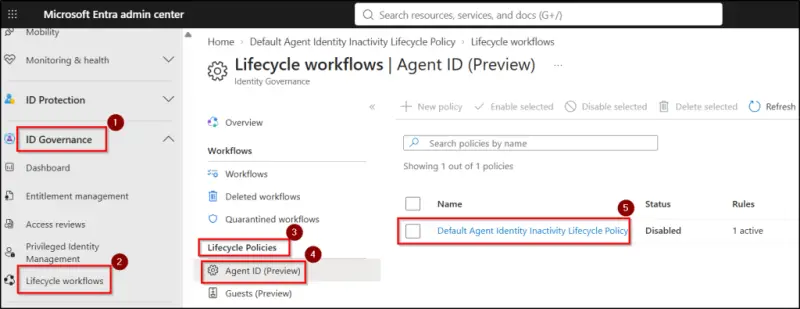
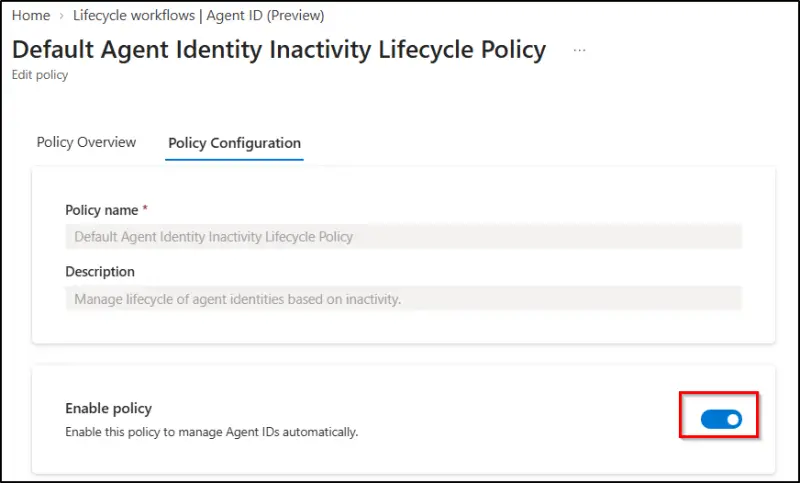
The steps are short. Sign in to the Microsoft Entra admin center, then go to ID Governance, Lifecycle workflows, Lifecycle Policies, and Agent ID (Preview). Open the Default Agent Identity Inactivity Lifecycle Policy, review the Policy Overview tab, then switch to Policy Configuration and turn on the Enable policy toggle.
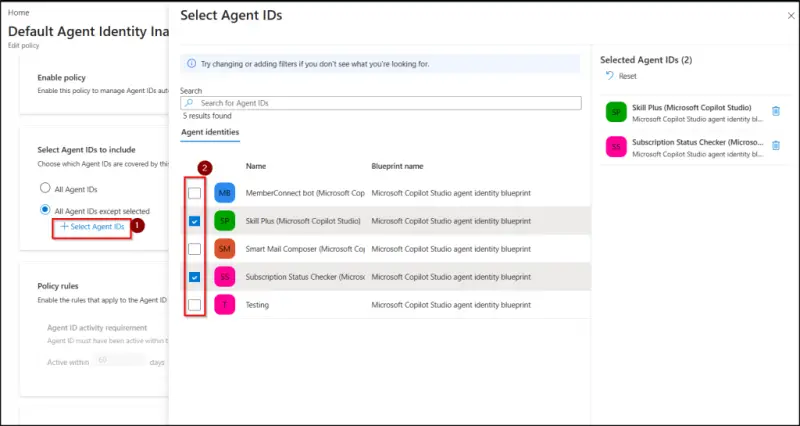
Next, review the scope under Select Agent IDs to Include. The default targets all agent IDs. If a handful of identities should stay outside the policy, select "All Agent IDs except selected", click + Select Agent IDs, pick the ones to exempt, and click Select.
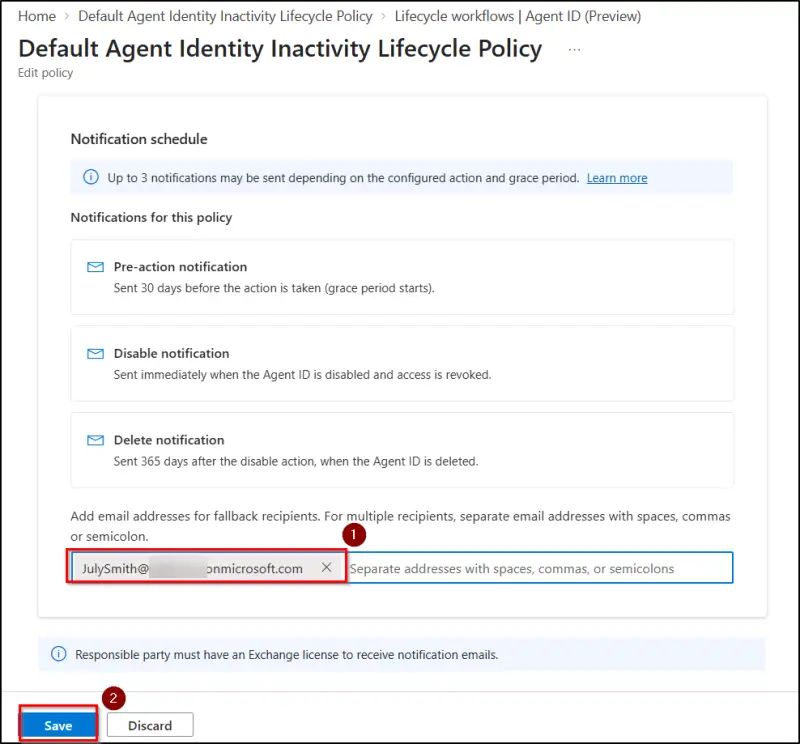
Under Notification Schedule, add fallback email addresses for agents without an assigned sponsor or owner. Group mailboxes are supported. Each recipient needs an Exchange licence to receive the notification emails, so a shared mailbox with no licence will silently miss them. Review the configuration and select Save.
From there the policy runs on its schedule. The catch is that the thresholds and actions stay fixed. If 90 days is too aggressive for your seasonal agents, or you want deletion on a different timeline, you'll need a custom policy.
Building a custom lifecycle policy
A custom policy exposes the settings the default locks down: the inactivity threshold, the cleanup action, and the grace period. Once an agent crosses the threshold, sponsors and owners are notified, and your chosen action applies when the grace period ends.
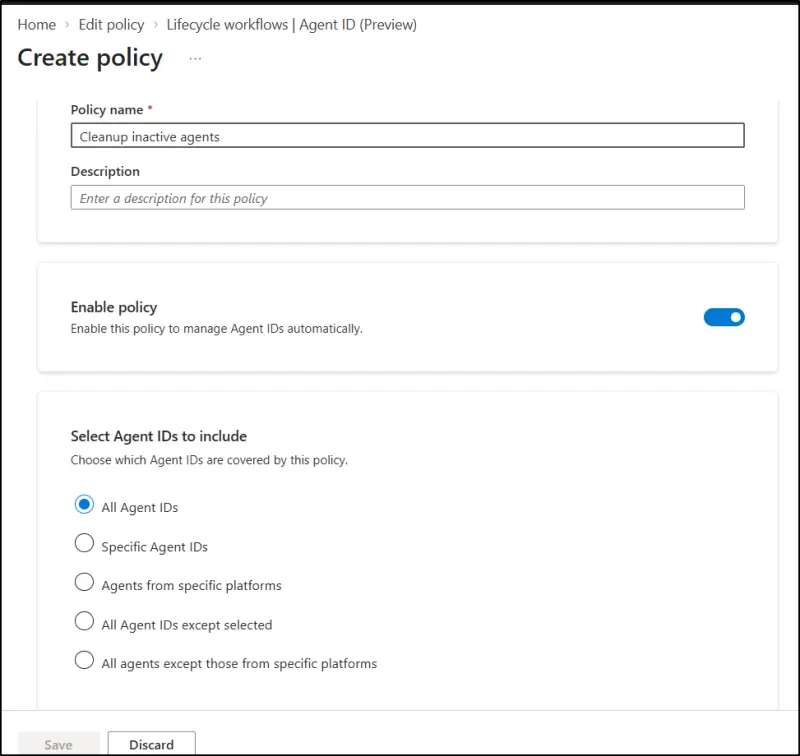
Start from the same Agent ID (Preview) page and select New policy. Give it a unique name and an optional description, then turn on Enable policy. The scope options are more flexible than the default's:
- All Agent IDs: every agent identity in the tenant.
- Specific Agent IDs: only the identities you select.
- Agents from specific platforms: agent identities associated with the platforms you pick.
- All Agent IDs except selected: everything except the identities you exclude.
- All agents except those from specific platforms: everything except agents tied to the platforms you exclude.
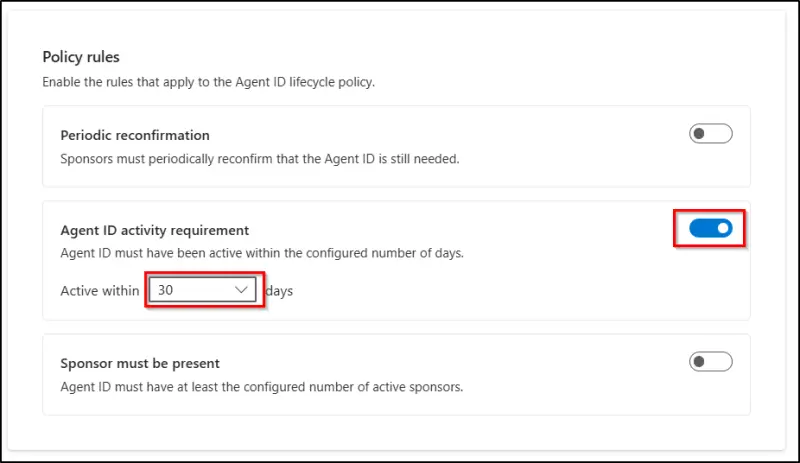
Under Policy rules, enable the Agent ID activity requirement toggle and select the inactivity duration. Then pick the policy action: Disable, Delete, or Disable and delete.
The option labelled "Disable Agent ID and delete after specified days" is the one to look at closely. It disables the agent first and deletes it only after the number of days you set, which gives sponsors a second window to object before anything is removed for good.
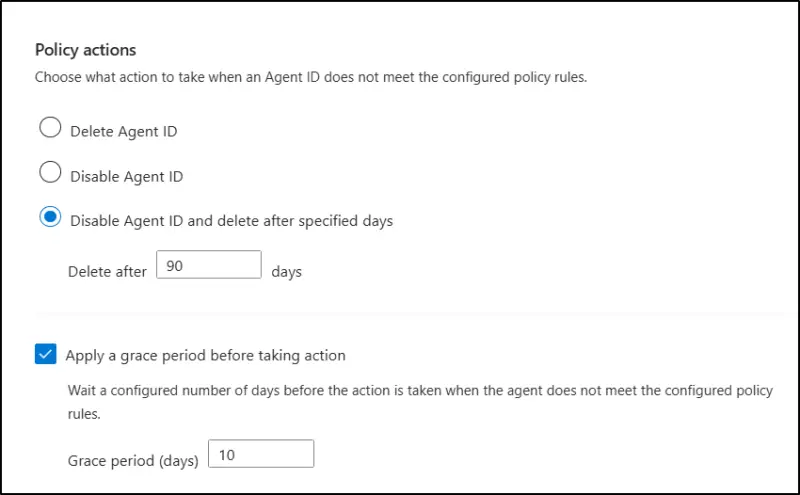
Next, enable Apply a grace period before taking action and set its length. Sponsors and owners are notified once the inactivity threshold is reached and get this time to respond before the configured action fires. Under Notification schedule, check the notification behaviour and add fallback recipients for agents without a sponsor or owner. Then save.
If you run several lifecycle policies, set their priority. When an agent matches more than one, the highest-priority policy applies. Overlapping scopes are an easy way to end up with a delete rule you didn't intend, so map the scopes out before you enable anything.
What sponsors and owners actually do
When an agent is flagged, sponsors and owners get an email naming the inactivity rule it broke and the action that follows if nothing happens in the grace period. If the agent has no sponsor or owner, the fallback recipients get the email instead.
From there, recipients sign in to the My Account portal and open Manage agents. That menu only appears for users who own or sponsor at least one agent. Two tabs split the list into Agents you sponsor and Agents you own.
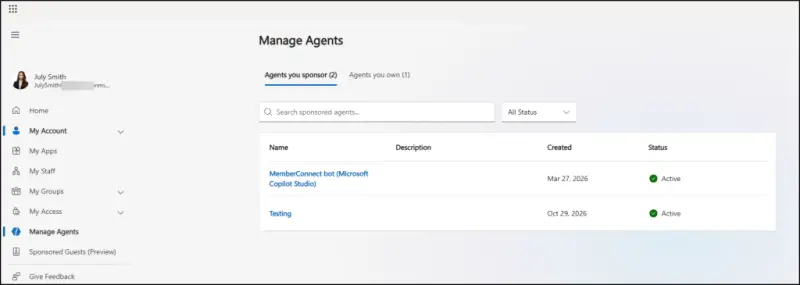
The reviewer can then either disable the agent immediately or keep it running. Keeping it means using it to trigger a new token issuance, which resets the inactivity period. Disabling it skips the wait.
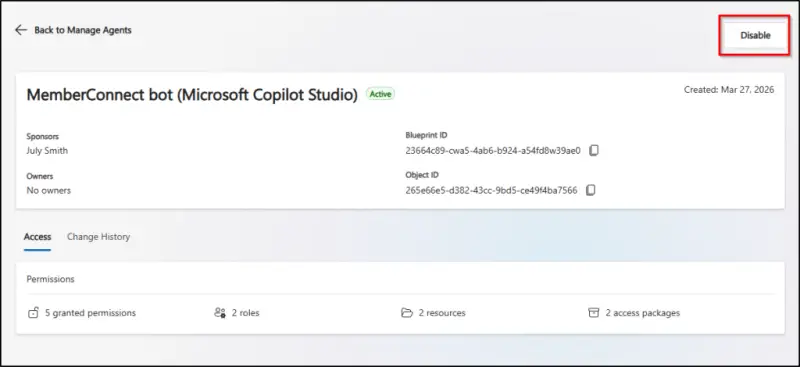
Mistakes happen, so restoration matters. Sponsors can't re-enable or restore agents themselves. Only an owner or an administrator can re-enable a disabled agent or restore a deleted one. Soft-deleted agent identities can be restored only within 30 days of deletion, so the window for recovering an accidental delete is narrow and should be on someone's calendar.
Practical guardrails before you switch anything on
A cleanup policy acts on every agent in its scope, so a bit of groundwork prevents live agents from being disabled by accident.
- Exclude seasonal agents. An agent that runs quarterly looks idle for most of the year. Exempt it from the default policy, or give it a custom policy with a longer window.
- Close ownership gaps. Make sure every agent has an owner or sponsor, and use a monitored shared mailbox as a fallback recipient for anything orphaned.
- Stage the cleanup. Use "Disable Agent ID and delete after specified days" in custom policies so agents are switched off first, and sponsors have time to decide before deletion.
- Combine the rules deliberately. Inactivity monitoring, periodic reconfirmation and the sponsor requirement work together, but each enabled rule is evaluated independently. Test how they interact before you rely on them.
- Keep sponsor assignments current. Inactivity notices go to sponsors. If a sponsor leaves or changes roles, the agent may have nobody to review it. Add the agent sponsor tasks to your offboarding workflows. Those tasks notify the manager and cosponsors, and can transfer sponsorship to the manager as well as the owner.
- Review audit logs. Check Entra audit logs for disablements, deletions and ownership or sponsorship changes. That confirms the right agents were cleaned up and catches accidental deletions while they're still restorable.
Where this leaves admins
Agent identities deserve the same lifecycle discipline as user accounts, and idle ones are the easiest to forget. The default inactivity policy gives you a no-extra-licence way to catch them on a fixed schedule. Its timings can't be changed, and it's still in preview, so it's better suited to a pilot tenant than a production estate for now. A custom policy gives you control over thresholds, actions and scope, provided your licensing covers it.
Whichever route you take, make sure every notification lands with someone who can act on it. Sponsors and fallback mailboxes are what turn an automated rule into a clean-up that actually works.


