Halloween Icons, Stock Images and Pumpkin Colours for Word, PowerPoint and Outlook
Where to find Halloween icons, stock images, stickers and pumpkin colours in Microsoft 365 and Office 2024, 2021 and 2019, and what each one needs.
Halloween graphics are a small job, but they're one that tends to land on whoever is making the staff newsletter or the classroom slides. The useful news is that Microsoft 365 covers most of the seasonal material you'll want, and the older Office builds cover a fair amount of it too. The catch is that the search terms and the locations differ between the subscription version and the perpetual releases, so it pays to know where to look before you start clicking around.
Where the Halloween icons live
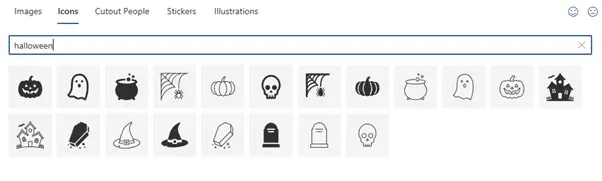
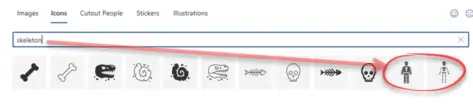
The best range sits under Insert | Illustrations | Icons. Search for "Halloween" and you'll get most of the set, including pumpkins, ghosts, witches' hats and skulls. It won't catch everything, though. Some of the scarier items, such as the evil pumpkins, are missing from that result, and a few things need their own searches. Skeleton and bones is one of them. Search for "skeleton" and you get a full set of bones along with a dinosaur skull, which is a handy extra if your audience includes anyone who has opinions about palaeontology.
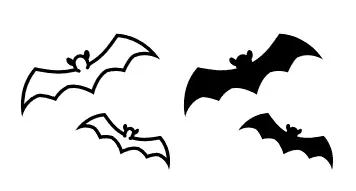
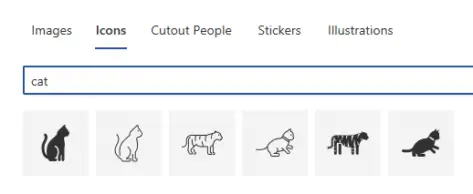
Most icons come in two forms, black and white outline. That's fine for a Word memo or a simple slide, but it can look flat on a coloured background. Bats need a separate search, and so does the black cat, so don't assume one term will pull everything together.
What the older releases offer
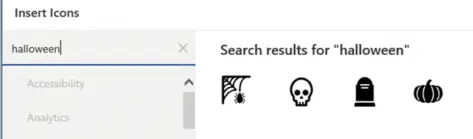
Office 2024, 2021 and 2019 also include icons, but the selection is much smaller. The source lists four Halloween-related icons in those versions: a web, a skull, a headstone and a pumpkin. That's enough for a simple poster or a tidy footer, but if you need variety, you'll probably want to move to Microsoft 365 or pull in outside artwork.
Icons, stock images, stickers and illustrations are all described as available in Microsoft 365 for Windows or Mac. Only some icons reach the perpetual releases, so if your organisation is still on Office 2019 or 2021 for certain machines, expect a mixed experience across the estate. Check which build each user actually runs before you promise a consistent look in a shared template.
Recolouring icons and matching the pumpkin orange
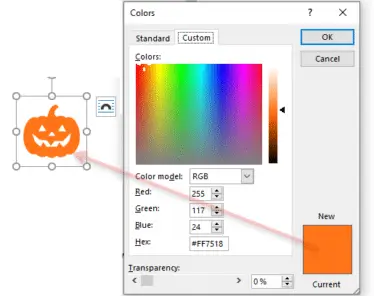
Any icon or graphic can be recoloured through Graphics Format | Graphics Styles | Graphics Fill. That matters because the black outline default rarely suits a branded slide deck. Once you've set a fill, the same approach works across Word and PowerPoint, so you can standardise a seasonal palette in one pass.
If you need an exact pumpkin shade, the source gives one value: Hex #FF7518, or RGB 255, 117, 24. Use the vertical slider to move to a lighter or darker version. For a wider selection of pumpkin tones, the source points to a separate Office colour article that covers fourteen options. Here's my take: if you're producing a set of documents that have to match, record the hex value in your style guide rather than relying on someone to eyeball it next October.
Free icons from the web and older Office versions
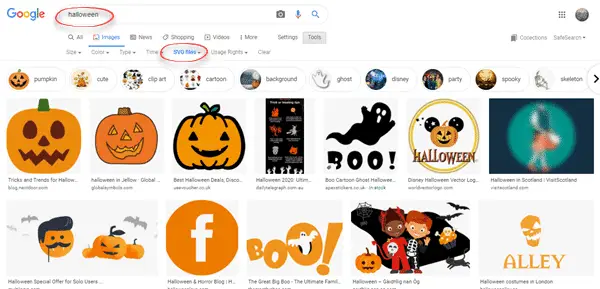
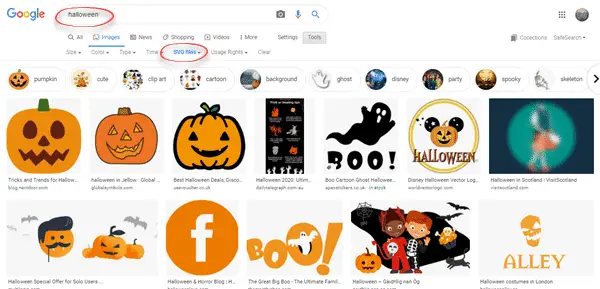
Beyond Office itself, there are plenty of icons on the internet, and in practice they're usually SVG graphics. The source suggests searching for Halloween or for specific subjects such as bat, skeleton or scary clown. SVG files are the better choice for most work because they scale cleanly and can be recoloured inside Office. If you're checking the licence on anything you download, read the terms on the site where you found it rather than assuming free means unrestricted.
Earlier versions, Office 2016 and before, don't handle these formats in the same way, so use JPG or PNG images there. That's a reminder to keep a PNG copy of anything you plan to share with users on older builds.
For text-based decoration, the source notes a searchable list of more than 30 Halloween emoji, which is handy for Outlook subject lines and chat messages.
Stock images and stickers
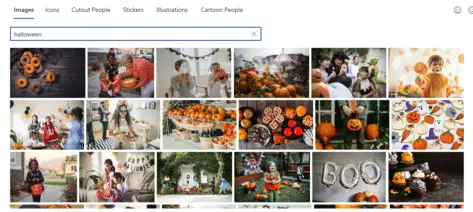
Stock images have changed the most. The source recalls a time when searching for "Halloween" returned just two stock images in Microsoft 365, and says that number has grown a lot since. You'll find them under Insert | Illustrations | Pictures | Stock Images. Stock images are a good option when you need photographic content rather than line art, such as a banner for an internal event page.
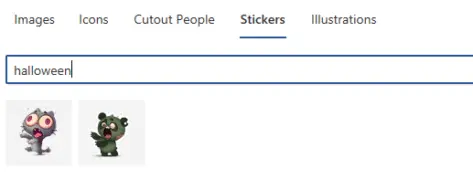
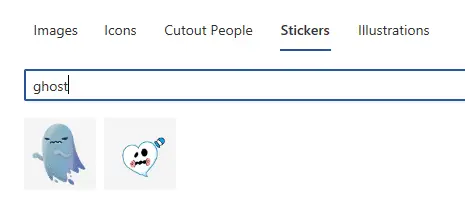
Stickers are more limited. A search for "Halloween" turns up two stickers, and the source describes them as an evil ghost and a heart-shaped one. It's a small selection, so treat stickers as a light accent rather than the main visual.
Illustrations: thinner pickings
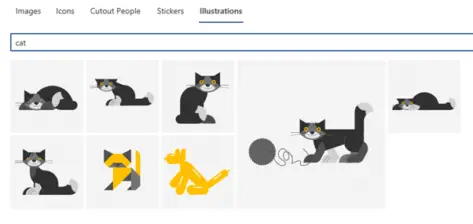
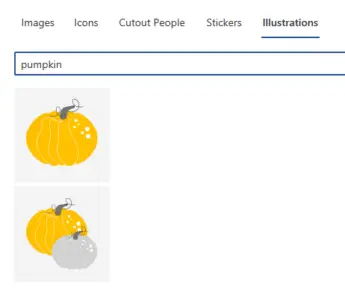
The Illustrations feature has no Halloween-specific category. The source describes some cats, though none are black and all are smiling, which isn't much use for a spooky theme. There are also two pumpkin illustrations, both uncarved. If you're after carved jack-o'-lanterns or witches, you'll need to look at icons, stock images or outside sources.
Going beyond icons
If you want animated or more elaborate work, the source points to Microsoft Designer. Its Halloween guide covers animated graphics, and a separate walkthrough shows how to turn your own photos into something spooky using Designer's AI tools. Those are the right places to go if a static icon isn't enough, though it's worth checking whether Designer is enabled for your users before you plan a session around it.
There's also a collection of skeleton and skull options across Office, and a set of free witch images. Together with the pumpkin colour charts, they cover most of the seasonal visuals a typical office or school might need. The pattern I'd expect to see is a small group of people building a shared template once, then reusing it every October, which is the least painful way to handle this kind of request.


