Halloween Emoji Codes for Office Documents: Unicode Values and Where They Render
A working list of Halloween emoji with Unicode hex values, plus how they display across Windows, Apple and Android devices in Office files.
Halloween emoji are a small detail, but they're one that trips people up in shared documents. A jack-o'-lantern can look like a cheerful pumpkin on one device and a flat orange blob on another. If you're putting seasonal symbols into Word, PowerPoint, Excel or Outlook, it helps to know the Unicode values, the names to search for, and where the glyphs are likely to render differently.
The reference table below covers roughly 30 spooky symbols, from 🎃 jack-o'-lanterns and 👻 ghosts to 🧛 vampires and 🦇 bats. Each row gives the emoji, its formal name, its Unicode code point in hex, and a few alternate names that help when you're searching.
The symbols worth keeping to hand
Start with the core set most teams will actually use. The Jack-O-Lantern (1F383) is the obvious pick, and it also goes by Carved Pumpkin or Gourd, which matters if a colleague searches for a different term. The Ghost (1F47B) is the other headline symbol, though it's the one most likely to look different from device to device. Treat it as decorative rather than as something a reader needs to decode.
For the darker end of the range, the list includes Skull (1F480), Skull and Crossbones (2620), Headstone (1FAA6), Coffin (26B0) and Funeral Urn (26B1). Those are useful if you're building a themed slide or a seasonal newsletter, but check the tone first. A skull that works in a team social post can read badly in a client-facing deck.
Some entries are more versatile than their names suggest. Full Moon (1F315) works for night-themed headers, Candy (1F36C) suits event invitations, and Magic Wand (1FA84) fits anything with a playful, costume-party feel. Bone (1F9B4) and Bat (1F987) round out the set for people who want a bit more spooky without going full horror.
Several characters in the table come in more than one form. Zombie (1F9DF) and Vampire (1F9DB) both offer male, female and skin tone options, which is worth knowing if you're trying to make a document feel inclusive. Choose the variant deliberately rather than letting the default stand, because it's the default that most readers will see first.
Reading the Unicode column
The hex values are the most practical part of the list. In Word for Windows, you can type the hex code and then press Alt+X to convert it into the matching symbol. That's a quick way to insert an emoji without opening a picker, and it's reliable as long as you type the code correctly. Our Alt+X walkthrough covers the mechanics in more detail for anyone who hasn't used the shortcut before.
Dialogue boxes like Insert Symbol work differently but use the same code points. In those windows you can jump straight to the emoji you want by entering its Unicode value, which saves scrolling through hundreds of characters. If you're writing a macro or a template that needs a specific emoji, the hex value is the identifier that will stay stable, even when the artwork changes.
One thing to keep in mind: some entries in the table use a variation selector, which is why a few symbols look slightly different when you copy them into another app. The hex code points you need are still the same, but a symbol may need its presentation form to display as an emoji rather than a text-style glyph. If an icon shows up as a plain outline in one app and a colour picture in another, that's usually the cause.
Copying and pasting into Office files
The simplest route is still copy and paste. Select the symbol in the table, copy it, and paste it into a document, spreadsheet cell, slide or email. This works across the Office apps, and it avoids the risk of a mistyped hex value. The trade-off is that you lose the code point, so if you need to replace or update the symbol later, you'll have to find it again.
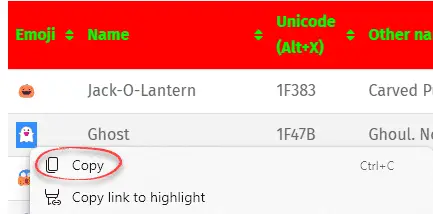
For spreadsheets, pasted emoji sit inside the cell as text. They'll appear in formulas and lookups as ordinary characters, which can matter if you're using text functions to sort or count entries. A ghost in a cell is still a character, so test any filters you rely on before you roll a seasonal sheet out to the wider team.
Why the same emoji looks different on each device
This is the part that catches most people out. Emoji are defined by Unicode as code points, but the artwork is supplied by the operating system or the app font. Windows, iPhone, iPad and Android all supply their own designs, so the same Ghost or Jack-O-Lantern can have a noticeably different shape or colour on each platform. The table's note about the Ghost is a fair warning: the difference is real, not a display glitch.
For internal documents, that's usually fine. For a printed flyer, a branded slide deck or a client proposal, it's worth previewing on the devices your audience actually uses. A symbol that looks charming on a Windows laptop might look odd on a phone, and the reverse is also true. If consistency matters more than fidelity, you may be better off using an Office icon or a graphic than relying on the emoji glyph.
Font fallback in modern and older Office
Modern Microsoft Office handles emoji through automatic font substitution. If the current font lacks a symbol, Office looks for a font that has it, which is why the same emoji usually appears even when you didn't choose a special font. That behaviour has pros and cons, and the trade-offs are set out in our piece on Word's symbol substitution.
Older versions behave differently. You may need to select a font that contains the emoji, such as Segoe UI Emoji, before the symbol shows up correctly. If you're supporting a mixed estate with older Office builds alongside Microsoft 365, test a sample document in each version. A symbol that works in one build may show as an empty box in another, and that's the kind of problem that appears on the day a deadline is closest.
Finding symbols by name
When you need a symbol quickly, search by name rather than by picture. The formal names in the table are the most reliable search terms in the Windows Emoji Panel and the macOS Character Viewer, because they match the underlying Unicode data. Searching for "jack-o-lantern" will find the pumpkin even if a colleague calls it something else. If you're writing instructions for a team, give them the name and the hex value together so they can locate the symbol however their system presents it.
The Windows Emoji Panel has had its quirks over the years, and our earlier coverage of it explains why some people prefer other methods. Whatever route you choose, documenting the name and code point in a shared template saves a lot of confusion later.
Pairing emoji with Office design tools
Emoji are quick and free, but they're not the only way to add seasonal character to a document. Microsoft 365 and Office 2024 include built-in icons, stock images, stickers and illustrations that scale cleanly and look consistent across devices. Where the emoji glyph varies by platform, these graphics are fixed, which makes them the better choice for branded material.
If you want to go further, Microsoft Designer is the tool to look at for animated graphics and custom Halloween designs. For teams that want a restrained palette, pumpkin colour charts with Hex and RGB codes make it easier to keep the look on-brand. Whichever route you take, the practical rule holds: use emoji for informal messages and quick decoration, and use designed graphics for anything that has to look identical on every screen. Check the rendering on the devices your audience uses, and you'll avoid most of the surprises.


