FaceTypes Matches Fonts in Images and Offers 522 Commercially Usable Alternatives
FaceTypes has 522 license-checked fonts and an in-browser image matcher. Its suggestions cover Google Fonts families, with limits for scripts and paid typefaces.
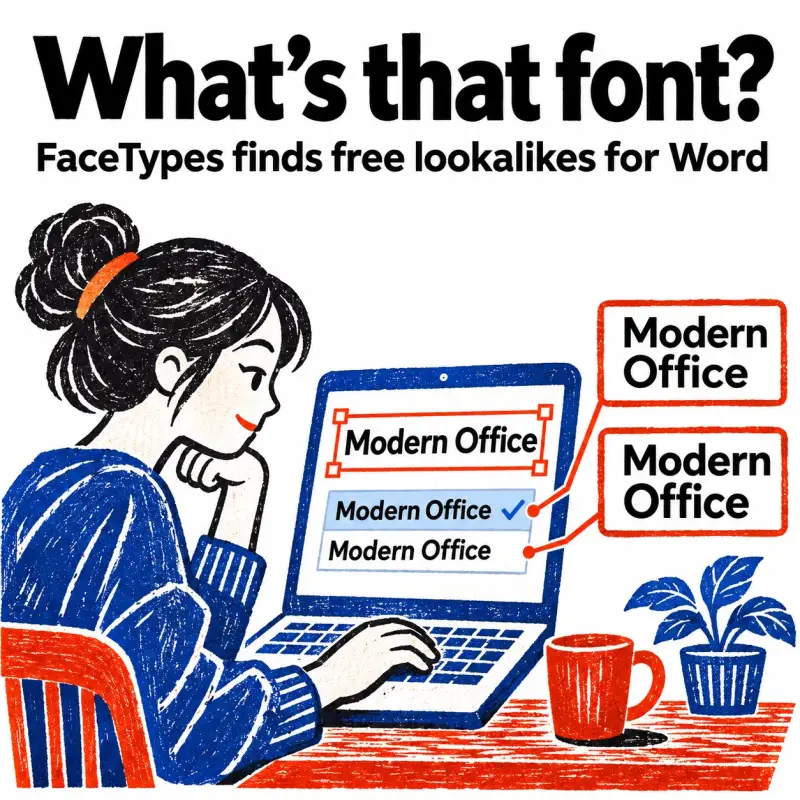
When a document needs to match a font spotted in a logo, flyer or presentation, FaceTypes can help find a usable alternative. Its image matcher compares text against Google Fonts families, while its library lists 522 free and open-source typefaces that FaceTypes says have been checked for commercial use. For Office teams, the useful part is the combination: find a close match, then follow the font’s download link and install it for Word, Excel or PowerPoint.
There are limits to keep in mind. FaceTypes suggests lookalikes; it doesn’t identify every commercial typeface by name. The image matching currently covers Google Fonts families, and cursive scripts can produce less reliable results. FaceTypes says the matching runs in the browser, so the image stays on the user’s computer during that process.
A catalog with licensing details
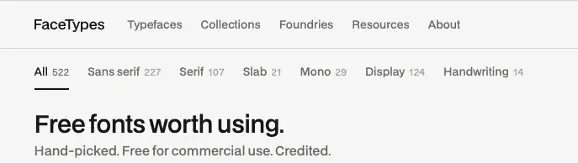
The library is organized into six categories: sans serif, serif, slab serif, monospace, display and handwriting. Users can also browse collections and foundries, the studios that create typefaces. FaceTypes lists the designer and links each font to a download source.
Most of the catalog uses either the SIL Open Font License or Apache 2.0. FaceTypes says both allow commercial use, embedding and sharing. Some fonts use a foundry’s own free license, so check the terms for the specific font before using it in a client deliverable or distributing it with a document. The catalog draws on roughly 50 sources, including Google Fonts, Fontshare, Font Squirrel and GitHub.
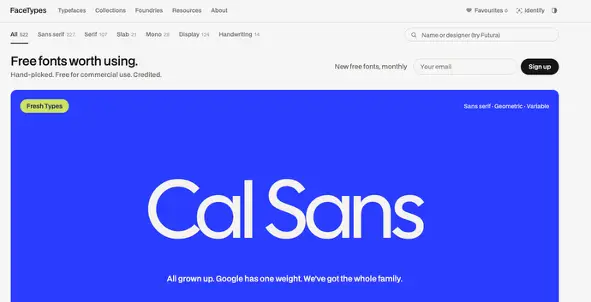
Browse options include filters for source and language, plus controls for OpenType features, italics, variable fonts, width and weight. A Favorites button lets users collect candidates for comparison. Recent additions appear in a section called “Fresh Types”; the site also offers design resources grouped as Tools, Icons, Maps and flags, and Illustrations.
What the image matcher can and can’t do
FaceTypes’ Identify feature takes an image containing text and returns suggested free alternatives. Its current comparison set includes about 1,800 font families, but the matching feature is limited to Google Fonts families in the FaceTypes library. If the image contains a paid typeface, expect suggestions for similar free fonts rather than a confirmed identification of the original.
Text quality matters. FaceTypes recommends selecting one clear line, entering at least five letters when possible, and matching uppercase and lowercase exactly. Replace unreadable characters with question marks. A clean crop gives the matcher less distracting material to interpret than a busy screenshot; cursive lettering may still be harder to match.
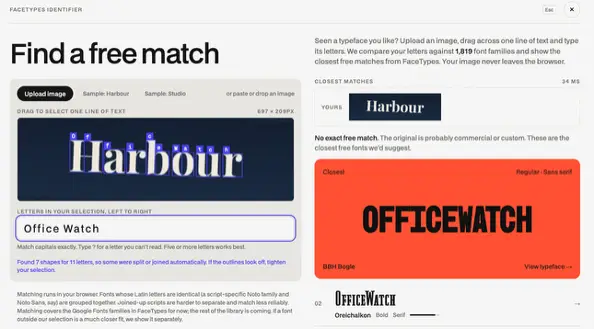
FaceTypes says image processing takes place inside the browser and the picture never leaves the computer. That can suit confidential drafts where uploading an image to a remote matching service would be a concern. This privacy detail applies to the matching process described here; it doesn’t replace an organization’s own review of the service and its use in a managed environment.
Finding and installing a font
To browse, open facetypes.xyz and choose a category or view all fonts. Apply filters, load more results as needed, and add promising options to Favorites. Open a font’s listing to follow its download link. FaceTypes itself is free to use and has no paid plans.
On Windows, extract the downloaded files, right-click the font file and choose Install. On Mac, double-click the file and choose Install. Restart Word, Excel or PowerPoint so the font appears in the application’s font list. For additional installation details, see installing fonts in Microsoft Office.
One practical point often surfaces after installation: fonts are installed on a computer, not automatically included with every document. A recipient whose device lacks the font may see a substitute, changing line breaks or the document’s appearance. Microsoft Office has font-embedding options that can help preserve formatting when sharing; see font embedding in Microsoft Word and font embedding in Office for Mac.
Check the font format and sharing needs
FaceTypes says about a third of its library consists of variable fonts. These files can offer multiple widths or weights within one font, but compatibility may vary across Office apps and exported PDFs. Teams choosing one for a standard document should check how it renders in the applications and formats they use. The site’s related guidance covers variable fonts in Office and PDFs and using WOFF fonts in Office.
For Office users, FaceTypes is most useful as a discovery tool: its catalog narrows the search, and its matcher can suggest a free visual substitute from its supported families. Before adopting a font for shared files, check its license, confirm that it installs and renders as expected, and decide how recipients will see it. That last check is what turns a promising match into a dependable choice for a document or presentation.