Word Compatibility Mode: Convert Older Documents Before Microsoft’s 2026 Layout Change
Word’s 2026 layout change may shift older documents. Check key files, preserve originals and convert copies to the current format.
Older Word files may look different after Microsoft removes some legacy layout settings, starting with Word for Windows in early December 2026 and Word for Mac in early 2027. Documents created or last saved in Word 2010 or earlier could reflow, gain or lose pages, or show pictures and shapes in new positions. Compatibility Mode remains available, and Microsoft says no data will be lost, but teams with documents that depend on fixed layouts should review them before the change reaches their software.
Converting an older file to the current Word format clears its compatibility options. That lets newer Word features work, but it can also change line breaks, page breaks and pagination. For contracts, forms, templates and other documents where layout matters, keep the original and inspect a converted copy before replacing anything.
What Compatibility Mode indicates
Word uses Compatibility Mode to preserve behavior for files created in older versions. The compatibility level has been the same since Word 2013, so documents made in Word 2013 and opened in Word 2016, 2019, 2021, 2024 or Microsoft 365 generally don’t show the mode. Files from earlier releases can.
The file extension alone doesn’t identify how current a document is. A .docx saved in Word 2007 or Word 2010 can still open in Compatibility Mode. Older .doc files from Word 97 through Word 2003 also open that way.
The limits depend on the document’s mode. Word 2010 mode disables Office add-ins and embedded online videos, which require Word 2013 or later. In Word 2007 mode and earlier, newer features may be downgraded: numbering formats can become basic 1, 2, 3 lists, tables can lose alternative text, and OpenType font features can be removed. Newer comment resolution and inline equations are also unavailable in Compatibility Mode.
Decide whether to convert
For most users, conversion makes sense: support for Word 2010 ended in October 2020, Word 2013 in April 2023, Word 2016 and 2019 in October 2025, and Word 2021 in October 2026. People using Word 2007 or Word 2010 can open .docx files created with Word 2013, although they may not be able to work fully with features added in newer versions.
Keep an older format when someone who edits the file relies on Word 2010 or an earlier release. Also take extra care with documents whose exact layout has contractual or legal significance. In those cases, compare a converted copy with the original and consider keeping a PDF record of the original appearance.
Before conversion, note the page count and inspect pages with complex formatting. Exporting the original to PDF gives you a visual reference. For important files, convert a copy so the source document remains available if the layout changes.
Convert in Word for Windows
The following options apply to Word for Microsoft 365, Word 2024, 2021, 2019 and 2016.
Save a converted copy
- Choose File | Save As. In Microsoft 365, AutoSave may show Save a Copy.
- Select a folder and give the copy a different name.
- Set Save as type to Word Document (*.docx).
- Clear Maintain compatibility with previous versions of Word. If this remains checked, the new copy stays in Compatibility Mode.
- Save the file.
Convert the open document
- Choose File | Info, then select Convert.
- Accept the warning and save the document.
This method changes the open file, so it won’t leave a backup unless you made one. When converting an older .doc file with Save As, Word may show the save dialog again; select Word Document (*.docx) there.
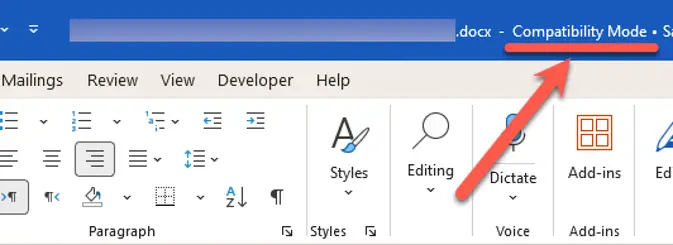
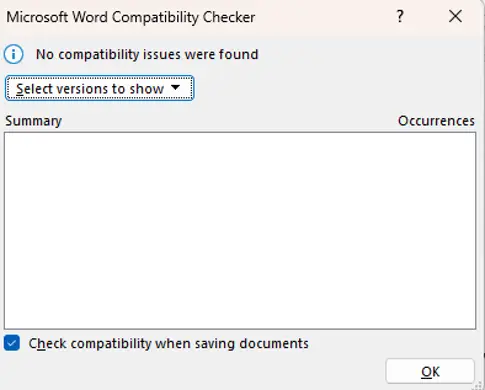
To check a document’s mode, open File | Info, then choose Check for Issues | Check Compatibility under Inspect Document. Select Select versions to show; a check mark identifies the document’s current mode. A simple file may report no compatibility issues while still displaying Compatibility Mode in the title bar.
Convert in Word for Mac and the web
Word for Mac doesn’t have the Windows File | Info screen. To create a converted copy, use File | Save As, give the file a new name, choose Word Document (.docx) under File Format and save. To convert the open document instead, choose File | Convert Document from the menu bar, confirm and save. That command appears only for files using an older format. It clears compatibility options and converts .doc files to .docx.
Word for the web supports most editing in a .docx that’s in Compatibility Mode. Picture insertion and resizing, along with editing alternative text, require opening the file in desktop Word and converting it. Older .doc files open for viewing; when you choose to edit one, Word for the web offers to convert it and save a new .docx copy. For a .docx in Compatibility Mode, select Editing | Open in Desktop App, then convert it in Word for Windows or Mac.
If new documents open in Compatibility Mode
When even blank documents show Compatibility Mode, check Word’s default format and its Normal.dotm template. In Windows, open File | Options | Save | Save files in this format and select Word Document (.docx).
You can convert Normal.dotm to retain its customizations. In Word, open the template through File | Open, then convert and save it. On Windows, press Windows key + R, enter %appdata%\Microsoft\Templates and press Enter to locate the template. On Mac, in Finder press Shift + Command + G and enter ~/Library/Group Containers/UBF8T346G9.Office/User Content/Templates.
Another option is to quit Word, rename Normal.dotm to a name such as NormalOld.dotm, then restart Word. Word creates a fresh template, but your old custom styles, default fonts and macros stored in the template won’t transfer automatically.
Check macros and features before saving
A .docx file can’t store macros. If the document needs them, use Save As and choose Word Macro-Enabled Document (*.docm). For old .dot templates, choose .dotx when there are no macros or .dotm when macros are present.
Some changes made by saving in an older format can’t be reversed by converting later. Citations and bibliographies, for example, may become static text that no longer updates. Word for Windows and Word for Mac don’t provide a built-in command to convert a batch of files, so a folder of older documents must be handled individually or with a macro or third-party tool.
Microsoft’s layout change gives administrators and document owners a reason to inventory older files before early December 2026 on Windows and early 2027 on Mac. Start with documents where pagination or image placement matters, preserve a reference copy, and compare the converted result before relying on it.