Why Excel Shows 46309 Instead of a Date When You Join Text
Joining a date to text in Excel returns a serial number like 46309. Wrapping the date in TEXT restores the format, but format codes change with the language setting.
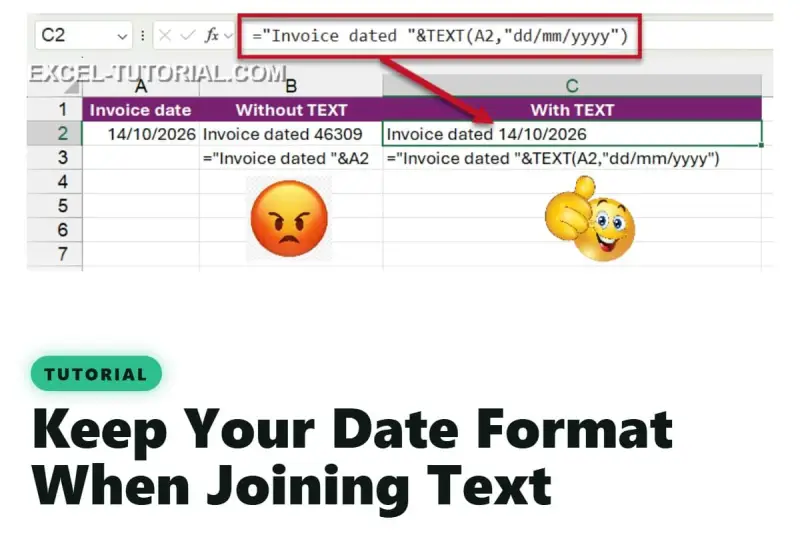
Joining a date to a label and getting “Invoice dated 46309” is one of those small Excel problems that looks like a bug and isn't. Nothing is corrupted. The cell still holds the date, but the join strips away the display format and hands you the underlying number. The fix is a single function, and the reasons behind it matter more than the fix itself, especially if you maintain templates that other people fill in.

Why the number shows up
Excel doesn't store dates as dates. It stores a number of days counted from 1 January 1900, then applies a date format so the number reads as a calendar day. The format is a display setting layered over the value, and the value is what the formulas see.
That's why text joins expose the raw number. When you concatenate with the ampersand, Excel takes the value and discards the formatting. Currency and percentages behave the same way: $1,250.00 comes through as 1250, and 12% becomes 0.12. CONCAT follows the same logic, so switching functions won't change the output. Teams often assume the function is the problem, when the real issue is that text joins never look at formatting in the first place.
Putting the format back with TEXT
The TEXT function converts a value into text in a format you specify. You wrap it around the cell that misbehaves:

=”Invoice dated “&TEXT(A2,”dd/mm/yyyy”)
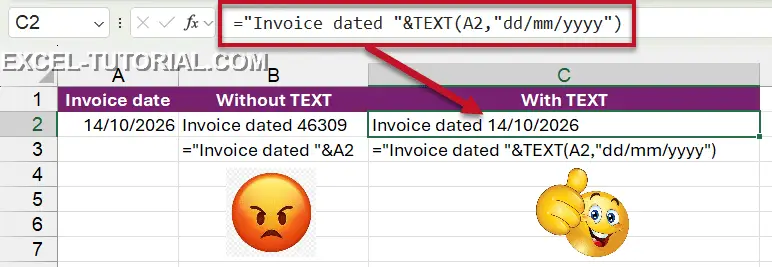
With that formula, the cell returns Invoice dated 14/10/2026. The second argument is a format code, and it's the same code you'd type into the custom section of the Format Cells window (Ctrl + 1, then Number, then Custom). If you already build custom formats, you already know the syntax. TEXT simply lets you apply that format inside a formula instead of to the cell.
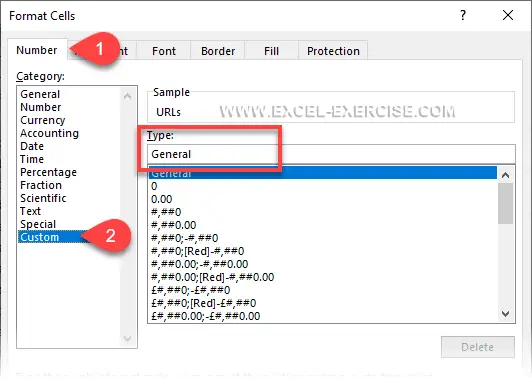
The codes themselves are straightforward. d stands for the day, m for the month and y for the year. Change the arrangement or the number of letters and the same underlying date can appear as a short numeric string, a month name, or a longer sentence-style date. The full set of codes is covered in Date Format in Excel.


Two things that bite later
The first is easy to forget. TEXT returns text, not a number. Once the join happens, you can't subtract dates, sort by them or feed the result into a date calculation. My rule of thumb is to keep the raw date in one column for calculations and use TEXT only in the column that gets read, such as a title, a label on a chart or a line in an email template.
The second one is the more serious problem for multi-user environments. Format codes follow the Excel language. In a French installation, the day, month and year letters are j, m and a (jj/mm/aaaa), so a formula written as dd/mm/yyyy can produce something unexpected when opened there. The source example shows the failure mode: the same argument can return an output like 14/mm/yyyy, because the code doesn't match what that installation expects. The formula itself hasn't changed, but the result has.
That makes TEXT a poor choice for workbooks that travel across language settings without testing. If a shared template will be used by colleagues on different locales, check the output on each one before relying on it. Where possible, keep the formatted string in a column that's easy to audit, so a mismatch shows up quickly rather than in a printed report.
Where to practise, and what to check
The fastest way to get comfortable is to join a few dates to labels in a scratch sheet, then try different format codes and see which ones survive your locale. Combining text with CONCAT in a grid of sample data works just as well. The source provides an interactive exercise on this, along with a short test of Excel functions and a collection of online exercises for those who want more practice.
For anyone auditing existing workbooks, the quick check is simple. Search for formulas that join text with an ampersand or CONCAT and reference a date column. Any of them without TEXT are candidates for the serial-number problem. Then ask whether the output is ever used in a calculation, and whether the file will be opened under a different language setting. Those two answers tell you whether TEXT is the right fix, or whether the date should stay a date and be formatted at the cell level instead.


