CONCAT vs CONCATENATE: Why Ranges Change the Choice
CONCAT accepts ranges where CONCATENATE wants every cell listed. Here's what that means for old workbooks, Excel 2016 colleagues and TEXTJOIN.
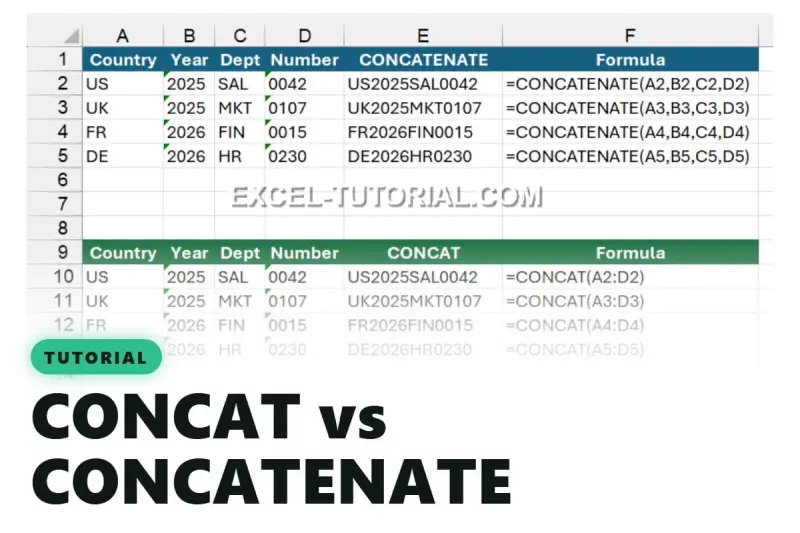
If you learned Excel a few years back, you probably joined text with CONCATENATE. Microsoft has replaced it with CONCAT, and the change goes beyond a shorter name. It alters how you write the formula, how long it gets and which versions can open it. For anyone maintaining shared workbooks, that's worth a look before the next round of template updates.

The real difference is ranges
CONCATENATE only takes values you list one by one:
=CONCATENATE(A2,B2,C2,D2)
Point it at a range, as in =CONCATENATE(A2:D2), and it won't give you the result you'd expect. CONCAT handles the range directly:
=CONCAT(A2:D2)

That's four columns joined in a formula of twelve characters. Scale it to twenty columns and the gap stops being cosmetic. You're looking at one formula with twenty separate arguments, each one a chance for a typo or a missed cell when someone adds a column later. CONCAT keeps the formula stable because the range reference does the work.
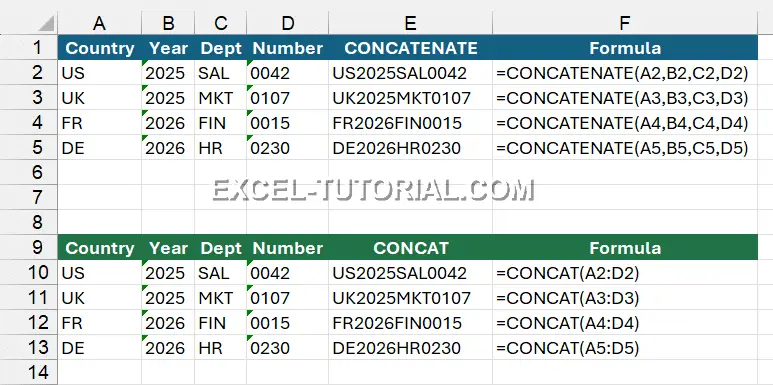
A simple way to remember it: the longer the name, the more arguments. CONCATENATE takes every cell one at a time. CONCAT takes one range. Once you've seen that, the choice between them mostly makes itself.
Is CONCATENATE dead?
No. Microsoft keeps the function so that existing workbooks continue to calculate, and it hasn't announced a removal date. Your existing files are safe, and there's no reason to go back through them rewriting working formulas.
That said, Microsoft now describes CONCATENATE as replaced, and its documentation points to CONCAT. My read is that the function will stay around for compatibility while new work moves elsewhere. Here's the working rule I'd apply:

- Old file: leave the CONCATENATE formulas where they are.
- New formula: write CONCAT, or TEXTJOIN if you need a separator between values.
Editing an old formula just to modernise it adds risk without adding anything the user can see. Change it when you're already touching that cell for another reason.
The version trap
CONCAT needs Excel 2019, Microsoft 365 or Excel for the web. CONCATENATE works everywhere, back to the oldest versions. That asymmetry is where people get caught.
If you share a file with colleagues still on Excel 2016, a CONCAT formula will show them #NAME?. Excel is telling them it doesn't recognise the function. The file looks broken even though the formula is fine on your machine. In that situation, the safest choice is neither function. Use the & operator, which has worked in every version of Excel since the beginning. It's a little more typing for a short join, but nobody on an older install will see an error.
Before you distribute a workbook, check the oldest Excel version anyone on the team actually runs. That's a five-minute conversation that saves a lot of "it's broken on my laptop" tickets.
Where TEXTJOIN fits
CONCAT is CONCATENATE with ranges added. Neither one gives you a separator or lets you skip empty cells, and that's where the third option comes in. If you need either of those, TEXTJOIN is the function to reach for. The practical sequence looks like this: use & for a handful of fixed cells in a workbook that older versions must open, use CONCAT when everyone's on a supported build and you want a range, and use TEXTJOIN when delimiters and blanks matter.
This also explains why CONCAT won't feel like a full replacement in every case. It solves the range problem. It doesn't solve the cleanup problem, and people who expect it to will end up with stray separators or gaps in their output.
Practise before you change production files
If you want to get comfortable with the three approaches, work through a practice spreadsheet first. The exercise walks through the & operator, then CONCAT, then TEXTJOIN in six steps, with feedback as you type. Doing it on sample data is far safer than discovering the difference in a live report.
Once you've tested the formulas, run the same workbook on the oldest Excel version your users have. That single check will tell you more about whether CONCAT is the right choice for your file than any rule of thumb.


