Copilot UX Components Showing "Something Went Wrong"? Check the Zod Schema
A Copilot UX Component can work locally and still fail to render in Microsoft 365. One likely cause is Zod min() and max() constraints in the schema.

Copilot UX Components are now generally available, and that changes what a declarative agent can show users. Rather than returning a wall of text, an agent can display a purpose-built interface with images, layout and structured content. The catch is that the custom interface depends on a schema check that can fail silently in production, even when everything looks fine in development.

What changed with general availability
Microsoft announced on 28 October that Copilot UX Components had reached general availability, bringing interactive experiences into Copilot. The capability had been in preview, and the move to GA means developers can now build against it as a supported feature rather than an experimental one. The Microsoft 365 Developer Blog post linked from the announcement is the place to start for the official scope and documentation.
For SharePoint Framework developers, the practical shift is that a component is no longer just a visual add-on. It's part of how the agent answers. Data flows from the agent into the component through a JSON structure, and that structure is described with Zod. That dependency is where most of the trouble I'd expect will come from.
Where the failure showed up
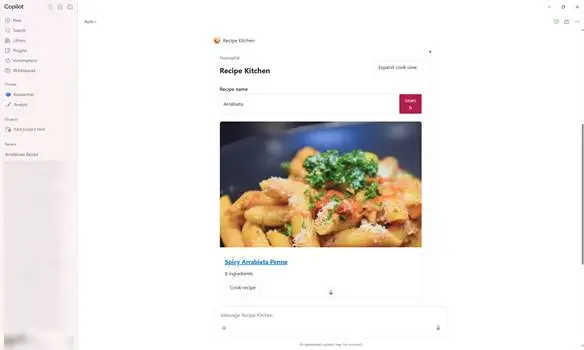
The scenario here was a declarative agent called Recipe Kitchen, designed to help find family recipes. In the Copilot Development Workbench, it worked well and the interface rendered as expected. Once the agent was uploaded through the Microsoft 365 Admin Center, the picture changed. The agent still returned its text, but the user interface didn't appear above it. The error shown was "Something went wrong. Please try again later."
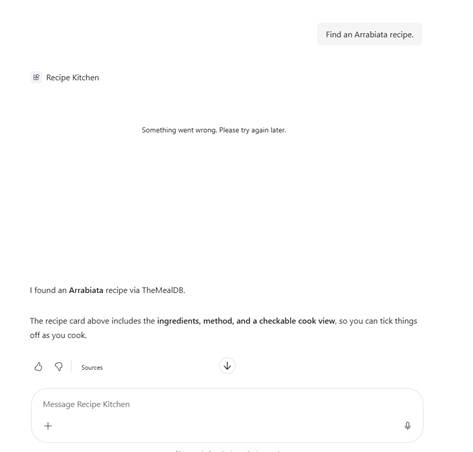
That split is worth paying attention to. If the text streams through, the agent is running and the model is responding. The fault sits in how the component is rendered, not in the agent logic. Teams that treat the error message as a general service problem can lose time waiting for something to resolve on its own. In this case, the fault was in the code that shipped.
Tracing it back to the Zod schema
The component's properties are defined in a file named after the component, typically [NameOfComponent]ComponentProperties.ts. Zod is used to describe the JSON schema that injects data into the component. The author had seen Zod-related problems twice before, and recalled Vesa Juvonen discussing unsupported Zod parameters. That prompted a review of the schema.
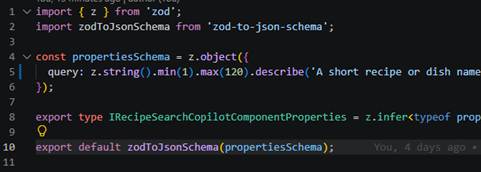
Two entries stood out: a min(1) and a max(120) on string fields. Those constraints are perfectly normal in ordinary Zod validation, which is part of why they're easy to overlook. Inside a component schema that gets serialised and interpreted by Copilot, though, they may not be supported in the way the developer expects. Remember that the local workbench and the tenant deployment aren't necessarily running the same validation path, so local success doesn't prove the schema is accepted in production.
The author checked the SPFx Copilot Components samples in the pnp/spfx-copilot-components repository and searched for z.string(). None of the samples used min() or max(). That's a useful signal, though not proof. Sample code is a reasonable reference point, and when a pattern is absent from every example, it's worth questioning whether it's the supported approach.
The fix was to remove the two constraints, increment the package and solution version numbers, repack the package and upload it again. The interface then rendered correctly in the tenant. The author's own note is that this was a workaround identified through testing and sample review, not a documented rule quoted from Microsoft.
What to check in your own components
If your Copilot UX Component renders in the workbench but not in the admin center, the schema is the first place to look. Here's how I'd approach it:
First, list every Zod validator in your component properties file and compare it against what Microsoft documents as supported for Copilot UX Components. If a validator isn't covered, treat it as a suspect until proven otherwise.
Second, remove suspect constraints in a test copy, not in your only working build. Keep a record of the change so you can explain why the constraint is gone.
Third, version the package and solution properly before redeploying. Uploading a repacked package under the same version number can leave you guessing about which build is live.
Fourth, test the agent through the same path your users will take. The workbench is useful, but the Microsoft 365 admin center upload is where this failure appeared, so that's the environment that matters for sign-off.
Finally, don't assume a text response means everything is healthy. Check that the interface renders, not just that the agent answers.
Where this leaves interface polish
The working version is functional, but the author wants it to look as polished as the sample components, which are visually more refined. That's the next stage: layout, styling and interaction design. Once the schema is clean and the deployment path is reliable, the remaining work is mostly front-end craft. The more useful lesson from this exercise is that schema compatibility is the thing to nail first. A good-looking component that won't render in the tenant doesn't help anyone, and the error message gives you little to go on. Build the validation check into your release routine now, before the next deployment window.


