vRO PackLens Opens Orchestrator Packages Inside VS Code and Saves Edits
A free VS Code extension that browses Orchestrator .package files as a tree and saves edited scripts or values into a modified package ready to import.

Most of the people who work on vRO content already spend their day in VS Code, with their scripts, Build Tools projects and Git repos all sitting in one editor. Opening a package in a browser tab, or in the Orchestrator client, breaks that flow. vRO PackLens is a free VS Code extension that puts the package view where the code already lives, and it adds one capability the browser approach doesn't have: saving a modified package after a small edit.
Why the editor matters
The developer behind PackLens built it as the next step after vRO Peekage, a browser tool that opens Orchestrator .package files. Readers kept asking whether the same thing could work inside VS Code, and that's a fair question. If your AI assistant, Git history and Build Tools output already live in the editor, a package that opens there saves a round trip. My read is that this is where the tool earns its keep: it's less about browsing and more about never leaving the place you're already working.
Install it
Search for vRO PackLens in the VS Code Extensions view and click Install. If you'd rather use the terminal, the source gives this command:
code --install-extension imtrinity94.vro-packlens
The reported output confirms version 2026.3.1 installed. There's nothing to configure after that. Any .package file you click opens in PackLens.
Browsing a package
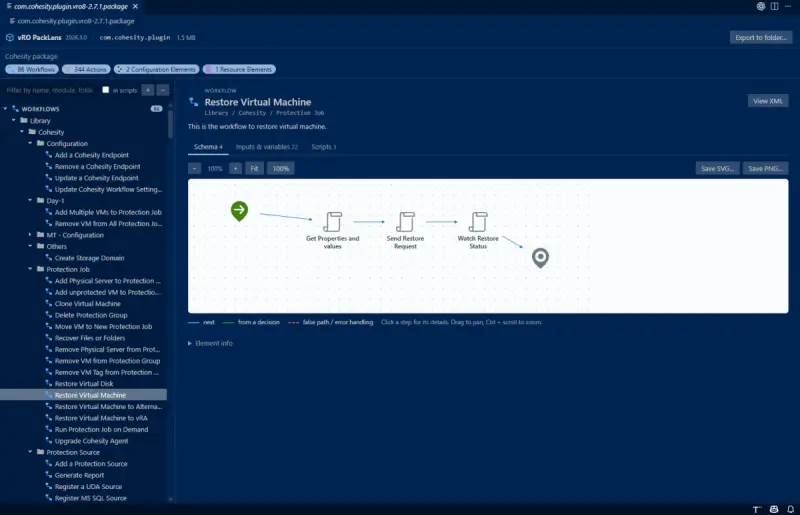
Open the folder holding your package and click it. The header shows the package name, its size and a count of contents. The left-hand tree groups items the way the Orchestrator client does: workflows in their folders, actions grouped by module such as com.vmware.library.vc.vm, configuration and resource elements, and policy templates. The filter box searches names, modules and folders. Tick in scripts and it searches inside the code as well, which is useful when you need every place a REST host or a hard-coded value appears.
Reading workflows, actions and configuration
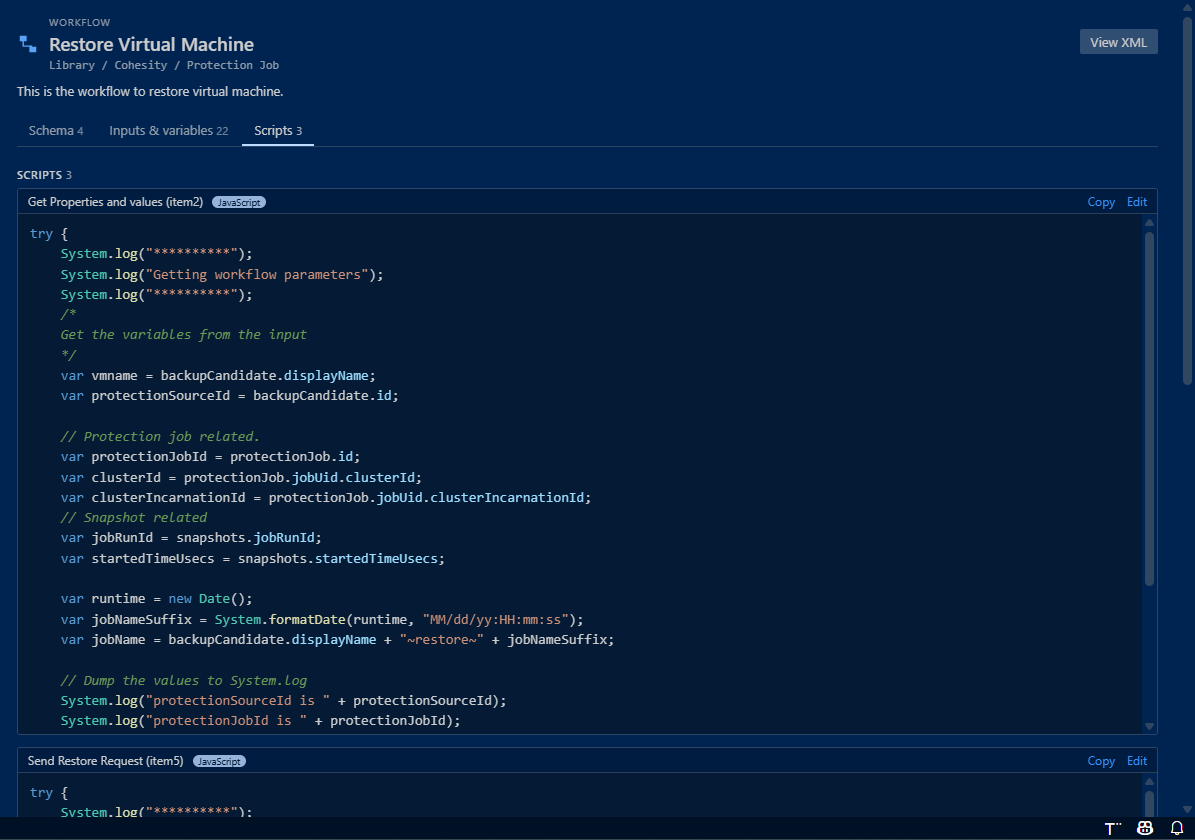
Workflows open on a Schema tab drawn from the positions saved in the package. It uses the Orchestrator icons and the same blue, green and red-dashed paths, so it looks familiar. Clicking a step shows its type, the action or workflow it calls, its next step and error path, its input and output bindings, and its script. You can pan by dragging, zoom with Ctrl or Cmd plus scroll, and export the diagram as SVG or PNG for a low-level design or handover document. The Inputs & variables tab lists inputs, outputs, variables and every schema item's bindings, and the Scripts tab collects every scriptable task in one place.
Actions show their module, version, return type, runtime, an inputs table and the script. JavaScript, PowerShell/PowerCLI, Python and Node.js are recognised and coloured accordingly. For a polyglot action running in an action environment, PackLens takes the language from that environment. If the environment wasn't exported with the package, it infers the language from the script.

Configuration elements list each attribute with its type, value and description. SecureString values stay masked, which means you can open a customer package on a shared screen without exposing credentials.

Editing and getting a modified package
This is the part that separates PackLens from a viewer. Take a common case: a package has a typo in a log message, a wrong REST path or a timeout that's too short. The usual fix means importing into a lab, editing in the client and exporting again. In PackLens the sequence is shorter:
- Click Edit on the code block of an action or a scriptable workflow task.
- The script opens in a normal VS Code tab as a
.js,.ps1or.pyfile, so your theme, shortcuts and extensions apply. That also means Copilot, Claude, Cursor or any other assistant you run in VS Code can work on the code directly. - Make the change and press Ctrl+S (Cmd+S on a Mac).
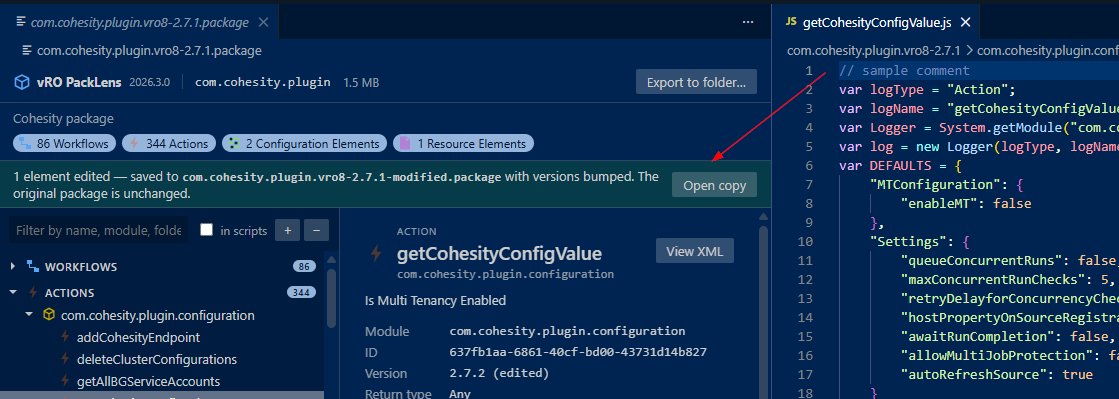
On save, PackLens writes a copy beside the original named <name>-modified.package. The original file is never changed. Three rules govern how the copy is built:
- Each edited element gets its version bumped once, for example from 1.0.0 to 1.0.1. Orchestrator only replaces an element on import when the incoming version is higher, so this is what makes the change take effect.
- Only the text you changed is replaced. Everything else, including signatures and certificates, stays as exported.
- You can save as often as you like. The version increments once per element, not once per save.
Edited items show an M in the tree and an edited badge, and a banner points to the saved copy. Configuration values follow the same path: click Edit on a String, Text, number or boolean attribute and type the new value. SecureStrings remain read-only by design. Import the modified file into Orchestrator as you would any package. The changed elements arrive with their new versions, and everything else is untouched.
Tested conditions and limits
The developer tested vRO PackLens 2026.3.1 in VS Code on macOS, using packages exported from Aria Automation Orchestrator 8.18.1. The tool reads packages from vRealize Orchestrator 7.x, Aria Automation Orchestrator 8.x and VCF Operations Orchestrator 9.x.
A few caveats matter here. Editing is meant for small fixes, so real development still belongs in the Orchestrator client or Build Tools for VMware Aria. VS Code's JavaScript suggestions don't know about the limits of Orchestrator's Rhino engine, so they may offer syntax your version can't run. Only scripts and simple configuration values are editable; workflow structure, bindings and inputs are read-only. Everything runs locally, and nothing is uploaded, which matters for customer packages.
If you already build packages with Build Tools, the same editor view helps there too. Each mvn package run writes a .package file into the target folder, and pulled dependencies arrive as packages. Clicking one shows exactly what was built or pulled in, with nothing imported.
PackLens or Peekage
The two tools suit different moments. vRO Peekage runs in the browser with nothing to install, shares packages through a link and exports content as plain files for AI assistants. PackLens lives beside your code and is the one to use for saving a modified package. If the package is already in your editor, PackLens is the quicker route.
Get it
- vRO PackLens on the Visual Studio Marketplace
- Download the VSIX (version 2026.3.1)
- Source code on GitHub, under the MIT licence, with a sample package in the
samplesfolder
Next time a package lands in your inbox, open it in VS Code and look through it first. If the fix is one line, make it there, import the modified copy, and check the result in Orchestrator. Issues and feature requests go on the GitHub issues page.


