ThinkPad T14 Gen 7 Review: Replaceable LPCAMM2 Memory, Ethernet and a Slow Graphics Core
Lenovo's ThinkPad T14 Gen 7 keeps LPCAMM2 memory, Ethernet and serviceable parts, but its six-core Core Ultra 5 332 and small GPU limit local AI work.
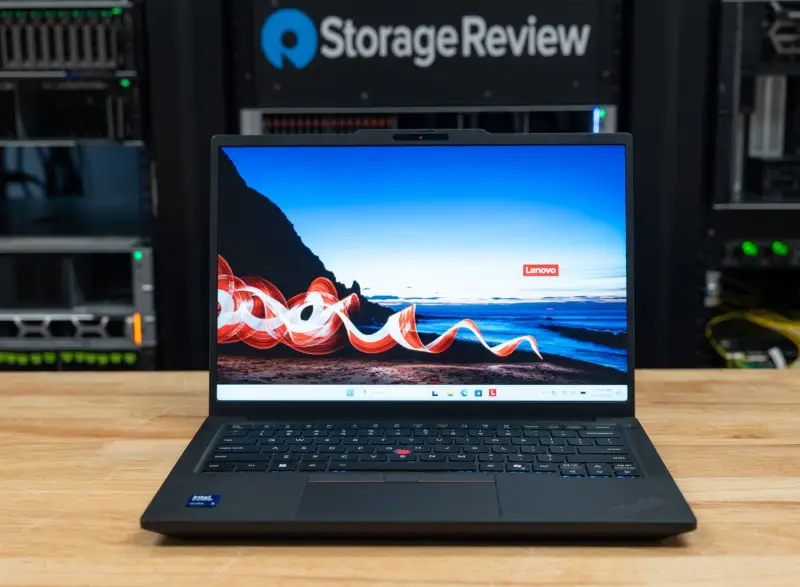
If you buy ThinkPads for a fleet, the T14 Gen 7 hits most of the boxes on the list. It has replaceable LPCAMM2 memory, a Gigabit Ethernet port, two USB-A ports, HDMI 2.1, a 75Wh battery option and Intel vPro Enterprise management in a 14-inch chassis that starts at 1.37kg (3.02lb) with that battery. The catch is the processor. The configuration we tested, model 21WN00C9US, uses the six-core Core Ultra 5 332, and that chip and its smaller integrated graphics explain nearly every weak result in this review.
Our unit came with 32GB of memory, a 512GB SSD and the 500-nit WUXGA touch display. Our read is that the T14 Gen 7 is a serviceable workhorse rather than a performance machine, and the configuration you choose matters more here than on most business laptops.
Where the T14 Gen 7 Fits in the Lineup
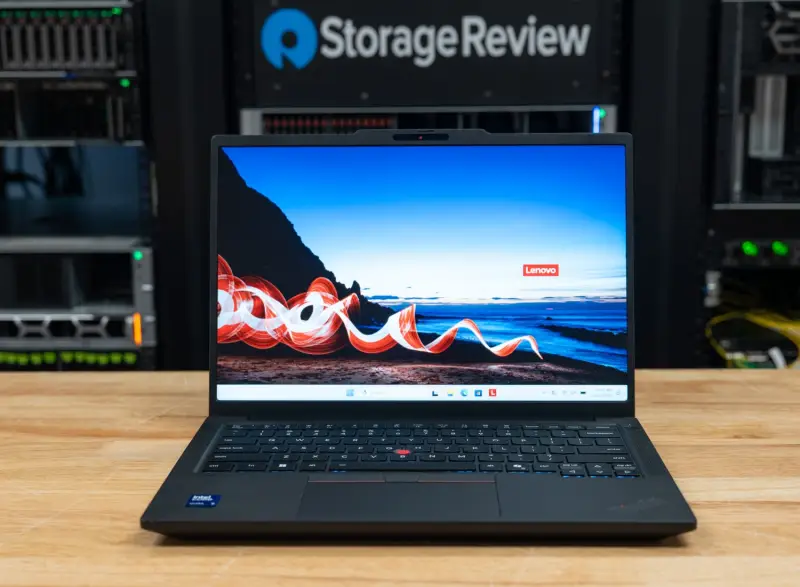
Lenovo positions the T14 Gen 7 as a Copilot+ business laptop built for productivity. It sits below the X1 and X9 families on price and above them on ports and serviceability. That trade-off shows up in the chip options. In North America, the Intel model ships with Core Ultra 5 and Core Ultra 7 processors: the 8-core Core Ultra 5 325 and 335, the 6-core Core Ultra 5 332, and the 8-core Core Ultra 7 355 and 365. Lenovo lists H-series chips, up to the Core Ultra X7 368H with Arc B390 graphics, for other regions.
The 332 is the smallest chip on that list. It has two P-cores and four low-power E-cores, six threads, a 4.4GHz maximum P-core clock and 12MB of cache. Lenovo rates its integrated Intel Graphics at up to 18 TOPS, while the 325, 335, 355 and 365 graphics reach up to 40 TOPS. The 332 still carries vPro. Our unit pairs it with the vPro version of the Intel Wi-Fi 7 card and the Intel I219-LM Ethernet controller for Intel vPro Enterprise management.
Pricing is where the configuration question gets uncomfortable. Our tested unit sells for $2,579 at CDW and B&H Photo, and it was in stock when we wrote this. Lenovo.com doesn't list that exact model. It does list two models, 21WN005SUS and 21WN00BUUS, with a Core Ultra 7 365 vPro, 32GB of LPDDR5X-7467, a 1TB SSD and the same 500-nit touch panel, for $2,489. The lineup starts at $1,609 for a Core Ultra 5 325 model with 16GB of memory, a 512GB SSD and a 400-nit non-touch display.
If you're standardizing on this chassis, the $90 gap between our configuration and the Lenovo.com model is the number to check first. The 365 model gives you faster memory, twice the storage and a stronger graphics core for less money.
Build, Materials and Feel
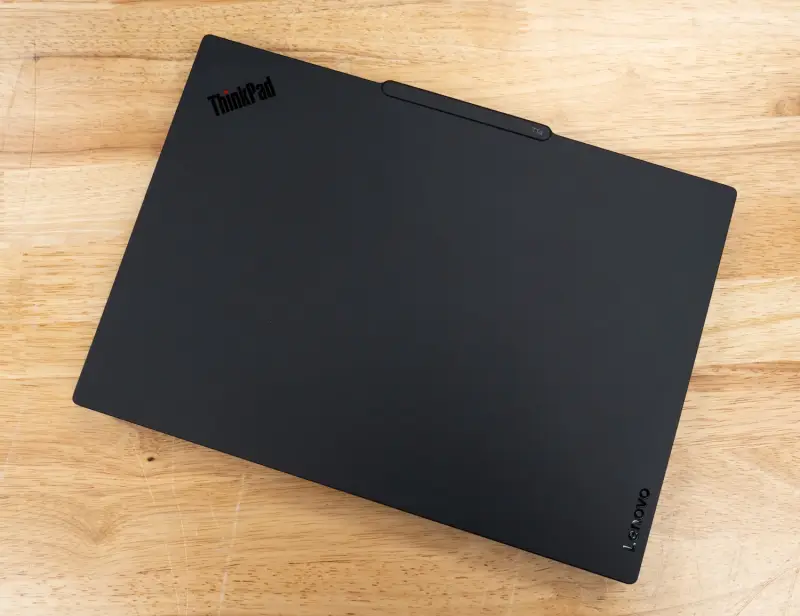
The chassis measures 313.6 x 221.7mm and tapers from 11.3mm at the front to 15.88mm at the rear, with a 21.95mm maximum height. Lenovo lists 1.37kg (3.02lb) as the starting weight for WLAN models with the 75Wh battery, against 1.27kg (2.80lb) with the 60Wh pack. The top and bottom covers on WLAN models are polycarbonate with 20 percent carbon fiber. The keyboard frame is 90 percent recycled magnesium, and Lenovo tests the design against MIL-STD-810H.
Specs only tell part of the story. In hand, the T14 doesn't feel as premium as the upper-tier ThinkPads. The lid flexes, and the bottom cover feels fairly limp. If your users come from an X1 and expect that rigidity, expect comments.
Ports, Wireless and Display Support
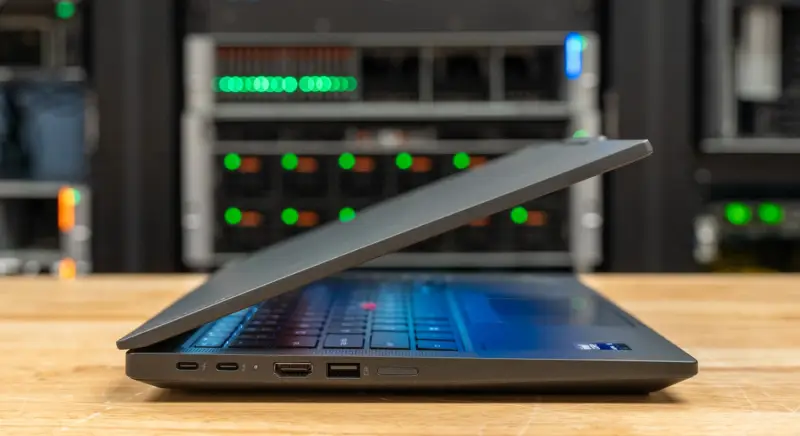
The port set is the strongest part of the T14's pitch for IT departments. It includes two Thunderbolt 4 connections with DisplayPort 2.1 and USB Power Delivery from 15W to 100W, two USB-A ports at 5Gbps with one always on, HDMI 2.1 at up to 4K and 60Hz, a 3.5mm combo jack, and an RJ-45 port for Gigabit Ethernet with Wake-on-LAN. On our unit, the left side carries both Thunderbolt 4 ports, HDMI and the always-on USB-A port. The right side has the audio jack, the second USB-A port, Ethernet and a Kensington Nano lock slot.
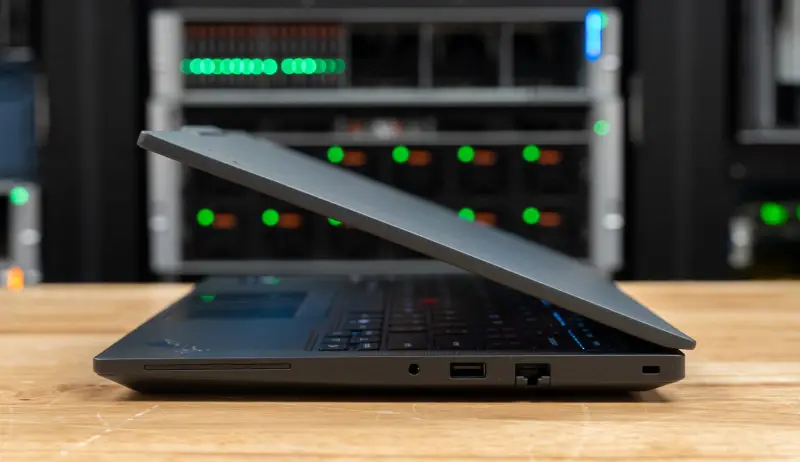
Wireless is Intel Wi-Fi 7 BE211 2×2 with Bluetooth 5.4. Our model has no WWAN and no NFC. Other configurations can add 4G or 5G modems, a smart card reader and a nano-SIM slot. Our unit has no card reader, and the T14 doesn't support a pen. The T14 can drive up to four independent displays: the internal panel plus three external monitors over HDMI and Thunderbolt, with Thunderbolt carrying up to 8K at 60Hz.
Keyboard, Input, Audio and Camera
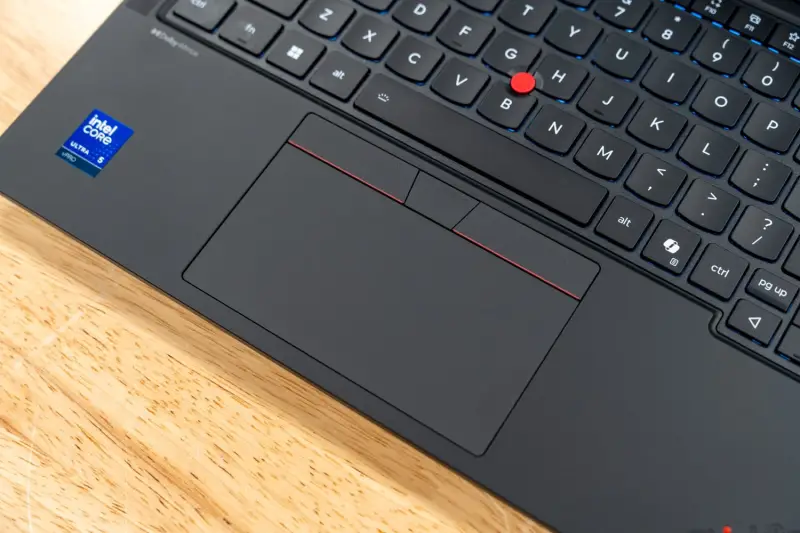
The keyboard is the six-row, spill-resistant ThinkPad layout with an LED backlight and a Copilot key. Most keys have 1.5mm of travel, while the Fn row and the G, H and B keys around the TrackPoint drop to 1.35mm. The trackpad measures 74.3 x 115mm and has a glass-like Mylar surface with three buttons. The fingerprint reader sits in the power button. Two 2W speakers with Dolby Atmos and a dual-microphone array with Dolby Voice handle conferencing audio.
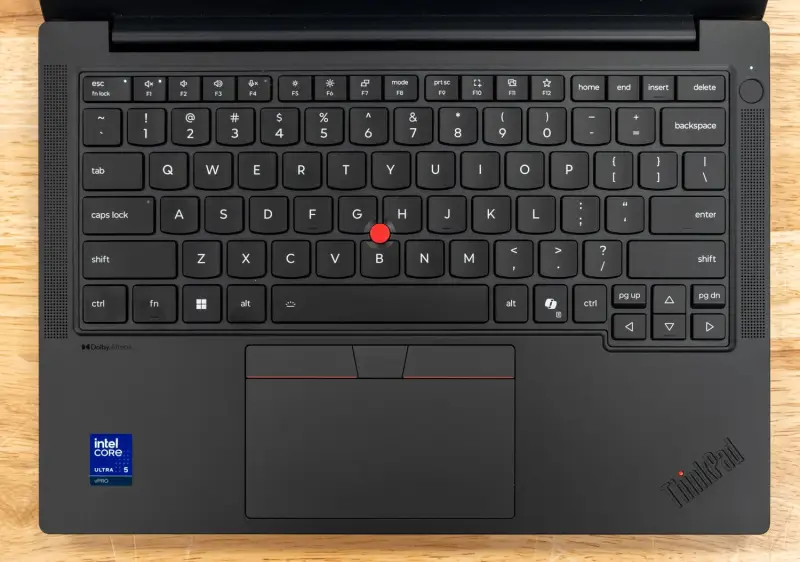
The camera is a 5MP sensor with IR for Windows Hello, vHDR, a privacy shutter and computer vision on the image signal processor for human presence detection.
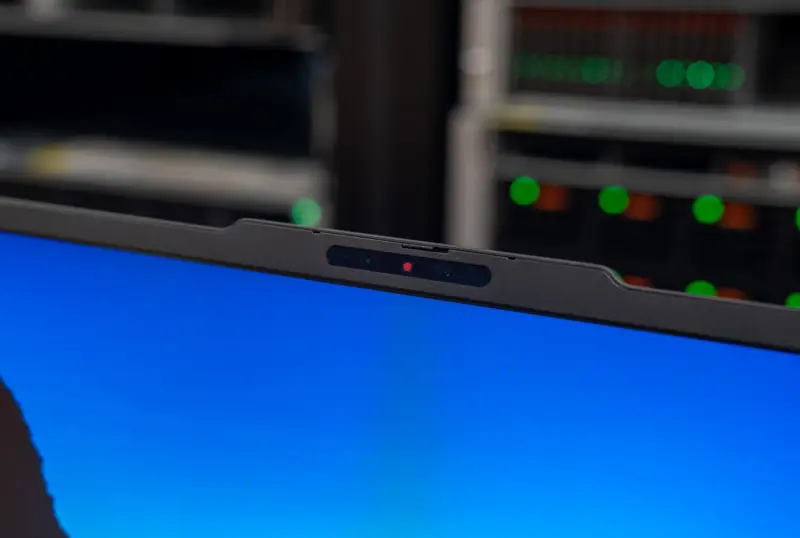
Our unit's display is a 14-inch, 16:10 low-power IPS panel at 1920×1200 with in-cell touch. It's rated at 500 nits, 1500:1 contrast and 100 percent sRGB, with an anti-glare surface and a 60Hz refresh. Lenovo also offers a 400-nit non-touch panel, a Privacy Guard touch panel and a 2.8K OLED at 120Hz. The 1920×1200 resolution means that a 4K test pass didn't run in our suite.
Memory, Storage and Serviceability
Memory is a single LPCAMM2 module. Our unit has 32GB running at 6800MT/s. Lenovo notes that the module is LPDDR5X-8533 and runs at 6800MT/s on this processor, and that the T14 supports up to 64GB. The replaceable module is the main reason to choose this chassis over soldered-memory rivals. Teams that have wrestled with fixed memory in laptops will see the value immediately.
Storage is one M.2 2280 slot wired for PCIe Gen5 x4 that holds drives up to 2TB. Our unit shipped with a 512GB Samsung Gen4 drive. Lenovo offers Gen4 drives up to 1TB and Gen5 Performance drives from 512GB to 2TB.
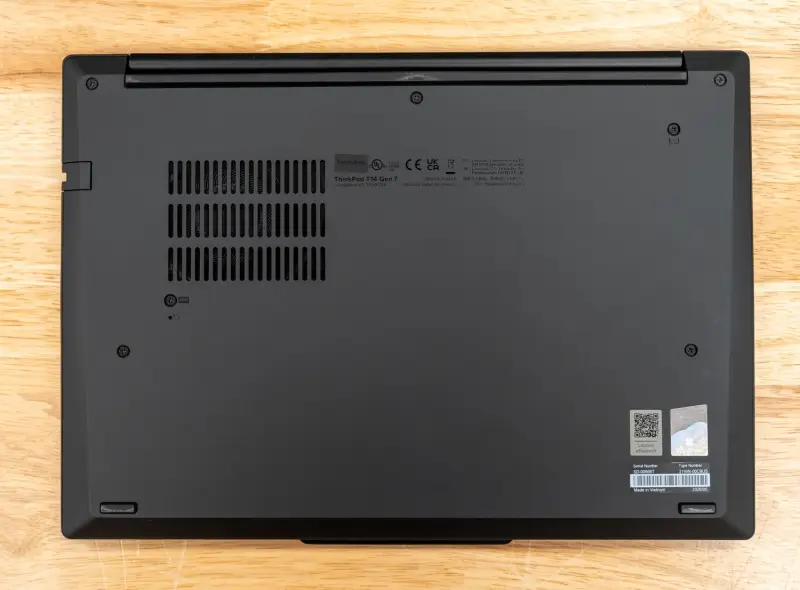
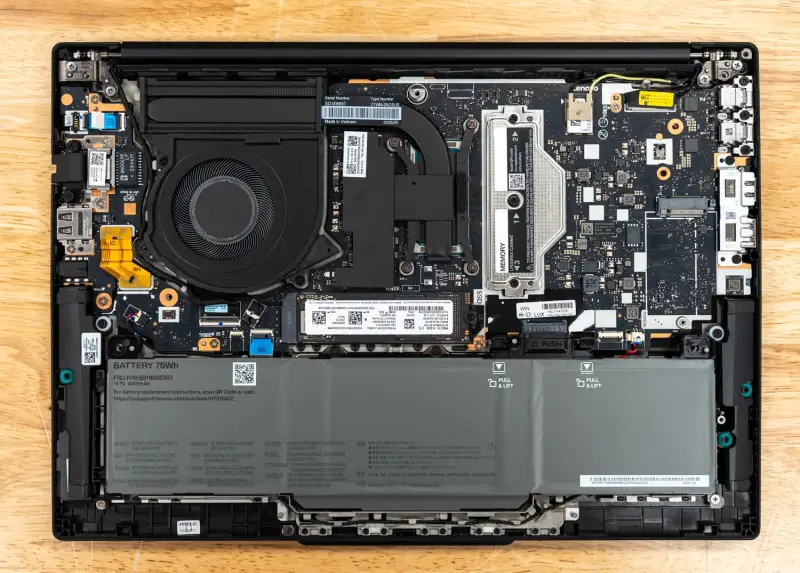
Seven screws hold the bottom cover, and it comes off without trouble. Inside, a single fan and heat pipe cool the processor on the left side of the board. The LPCAMM2 module sits under a metal retention bracket to the right of the cooler, held by three screws. The M.2 2280 SSD sits below the cooler, and an unpopulated M.2 slot marked WWAN sits at the right edge. The 75Wh battery spans the front of the chassis. It has no screws and releases with two clips and a lift. The source notes that the USB-C ports are also field-serviceable on this machine. For a fleet manager, that combination of screwless battery and three-screw memory access is the detail that matters most.
Power, Charging and Warranty
The 75Wh battery ships with a 65W USB-C adapter. Lenovo specifies a 100W adapter for Rapid Charge, which takes the battery to 80 percent in one hour. Lenovo quotes up to 19.8 hours in MobileMark 30 for a Core Ultra 5 332 configuration with 16GB of memory, the 60Wh battery and the low-power touch panel. That's a different configuration from ours, so treat it as a vendor figure. Battery life on our 75Wh unit will follow in a later update.
The base warranty on our model is one year of courier or carry-in service.
How We Tested
Our review unit runs the Core Ultra 5 332 with integrated Intel Graphics, 32GB of LPDDR5X at 6800MT/s and a 512GB Gen4 SSD on Windows 11 Pro. We ran benchmarks in the Best Performance power mode, plugged in, on BIOS 1.06 and Intel graphics driver 32.0.101.8826.
Results come from full, Peak-profile runs of sr-client, our scripted client benchmark suite. The three ThinkPads ran sr-client version 1.13, and the Dell ran version 1.12. The benchmark applications match across those releases, including Cinebench 2026, 7-Zip 24.09, Blender 4.5, Stockfish 19, GROMACS 2025.3 and MLPerf Client v2.0.
The suite applies the same settings to every system. Windows power mode is set to Best performance, display brightness is 50 percent, and all sleep and display timers are off. Windows Firewall and UAC prompts are off, and VBS and Memory Integrity stay as shipped. Each result is the median of repeated passes, and the suite reruns a test if its spread exceeds 2 percent before accepting it.
The comparison set includes two other ThinkPads and a close Dell rival. The Lenovo ThinkPad X1 2-in-1 Gen 11 runs the 8-core Core Ultra 7 355 with the larger Intel Graphics, 32GB and the same Samsung SSD model. The Lenovo ThinkPad X9-15p Gen 1 runs the 16-core Core Ultra X7 358H with Arc B390 graphics. The Dell Pro 7 14 is a 14-inch business notebook with a 12-core Ryzen AI 9 HX PRO 470, Radeon 890M graphics and 64GB of memory.
Local AI: Where the Small GPU Shows
The T14 runs local AI work on the Core Ultra 5 332's integrated graphics and shared system memory. On our 32GB unit, the suite measured 18.1GB of GPU-usable memory. That clears the 16GB floor for our tiered tests, so model loading and the coding agent both ran. The 332's graphics are rated at up to 18 TOPS against up to 40 TOPS for the 355 in the X1 2-in-1, and that gap sets the pattern for nearly every result in this section.
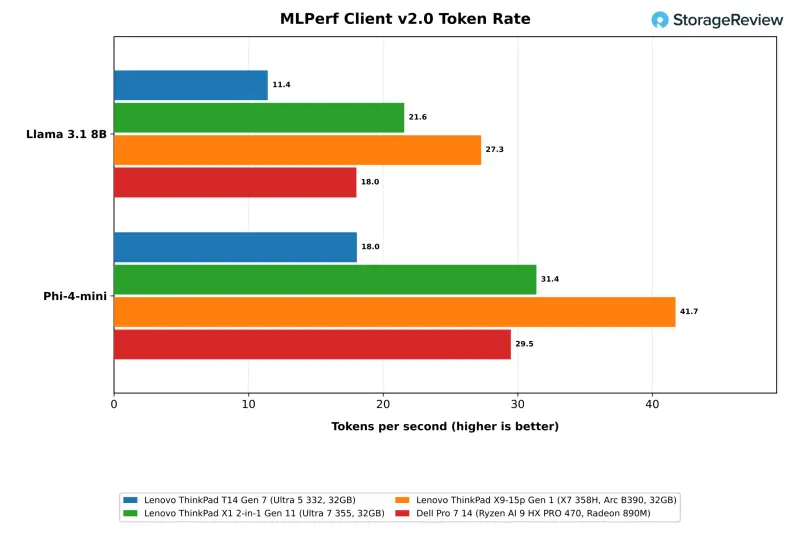
MLPerf Client runs through OpenVINO on the three ThinkPads and through Windows ML with DirectML on the Dell, so the comparison covers engines as well as hardware. The T14 generated 11.4 tokens per second on Llama 3.1 8B and 18.0 on Phi-4-mini. Its geometric mean time to first token on Llama was 1.13 seconds. The X1 2-in-1 is 1.9 times faster at 21.6 tokens per second on the same OpenVINO path. The X9-15p reaches 27.3 tokens per second, and the Dell reaches 18.0.
The model-load test measures Ollama from launch to first token on gpt-oss:20b, a 12.8GB model, both cold from the SSD and warm from the page cache. The T14 took 11.03 seconds cold and 10.54 seconds warm. The X1 2-in-1 took 10.40 and 9.80 seconds. None of the 32GB ThinkPads gained more than a second from a warm cache. The 64GB Dell dropped to 5.14 seconds warm, which suggests that 32GB leaves little page cache free once the model sits in shared memory.
The coding agent test runs Crush against gpt-oss:20b with a 64K context, working through a fixed programming task three times, with up to three rounds per run. The T14 failed all three runs. Two timed out after two rounds, and the third finished three rounds with 7 of 11 tests passing. Its generation rate averaged 7.3 tokens per second. The X1 2-in-1 succeeded on two of three runs at 12.5 tokens per second, the X9-15p passed all three at 18.3, and the Dell passed two at 20.2.
Speedometer running beside the agent exposes the same limit. The browser score fell from 35.5 to 31.9, a 1.11x slowdown, and the agent's generation rate dropped from 7.3 to 6.8 tokens per second. Larger models are out of reach on this configuration. The 27B serving model needs 30GB of GPU-usable memory, and the 35B agent model needs about 40GB. The replaceable LPCAMM2 module does leave a path to 64GB after purchase, though that doesn't change the graphics ceiling.
RAG and LLM Serving
The RAG test embeds 20,963 SQuAD passages, retrieves the top five for each question and answers with Phi-4-mini through Ollama. The T14 ingested 22.9 passages per second with an embedding rate of 3,703 tokens per second. It generated answers at 17.1 tokens per second, with a median of 3.14 seconds from question to answer. The X1 2-in-1 is 1.9 times faster on ingest at 43.1 passages per second and answers in a median of 1.69 seconds. The X9-15p ingests at 83.6 passages per second.
LLM serving runs the llama.cpp server with Ministral 3 models at 4,096 prompt tokens and 1,024 output tokens per request. The T14 delivered 6.6 tokens per second to a single user on the 3B model and 11.8 across four concurrent requests. On the 8B model it managed 4.4 and 6.7. Prompt processing is where the smaller graphics show most. The T14's median time to first token was 35.4 seconds on the 3B model and 53.1 seconds on the 8B model. The X1 2-in-1 took 15.2 and 23.7 seconds, and the X9-15p took 4.3 and 7.2 seconds.
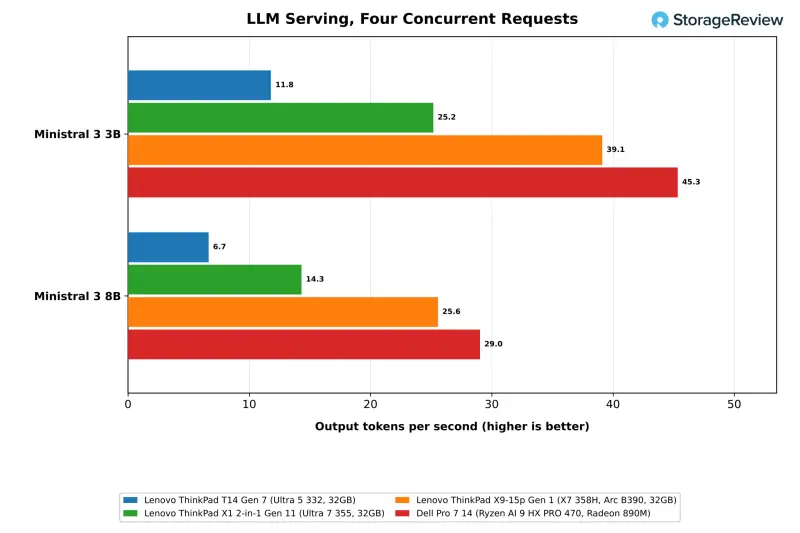
Image Generation
Image generation with stable-diffusion.cpp isn't practical on this graphics core. The T14 completed FLUX.2 klein 4B at Q4_0 in 612 seconds per image, or 0.10 images per minute. Z-Image Turbo at Q4_0 ran at 0.046 images per minute, close to 22 minutes per image. The BF16 Z-Image Turbo and every Qwen-Image 20B run needed more than the 18.1GB of GPU-usable memory. The Radeon 890M in the Dell produced 1.79 images per minute on FLUX.2.
CPU Performance
The Core Ultra 5 332 scored 1,841 in Cinebench 2026 multi-core and 457 single-core. The 8-core Core Ultra 7 355 in the X1 2-in-1 is 42 percent ahead on multi-core and 4 percent ahead on single-core. The Ryzen AI 9 HX PRO 470 in the Dell is 2.2 times faster on multi-core at 4,045 points. The 16-core X7 358H in the X9-15p is 2.5 times faster at 4,594. Single-core results sit within 12 percent across all four systems, which tells you the clock speeds are close and the core count is the real difference.
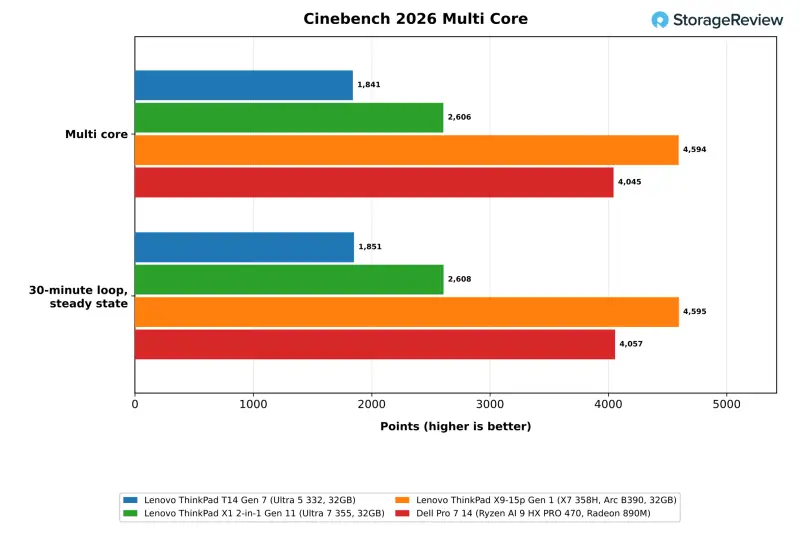
Over the 30-minute loop, the T14 opened at 1,845 and settled at 1,851. It held its first-pass score with the CPU averaging 91.6C and a mean clock of 3,591MHz. The single fan keeps this six-core chip at full output for the full test, and we saw no thermal throttling in our runs.
Content Creation: 7-Zip, Blender, HandBrake and LLVM
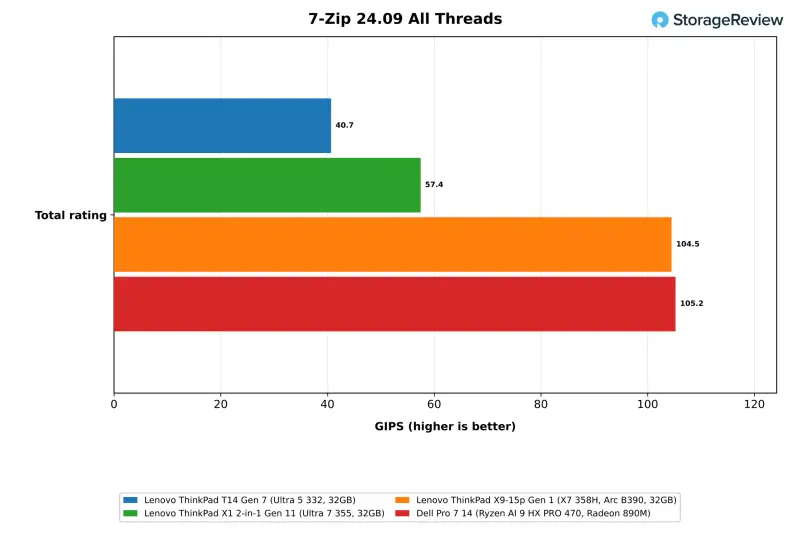
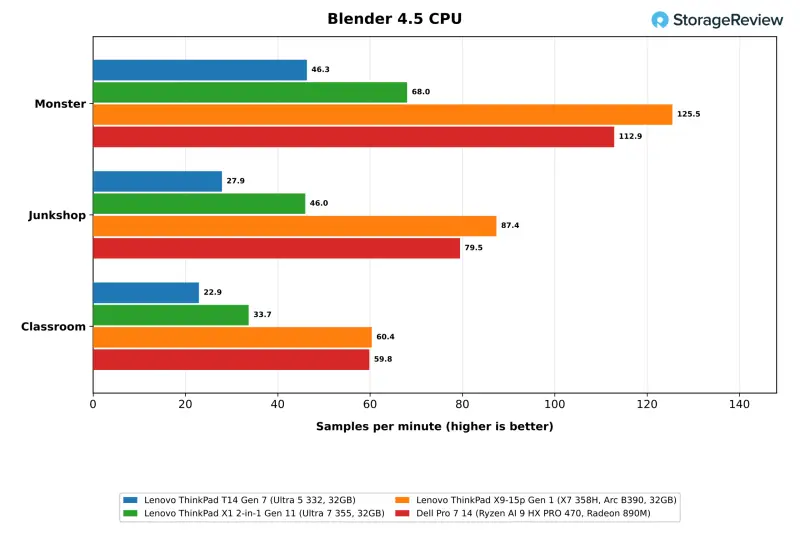
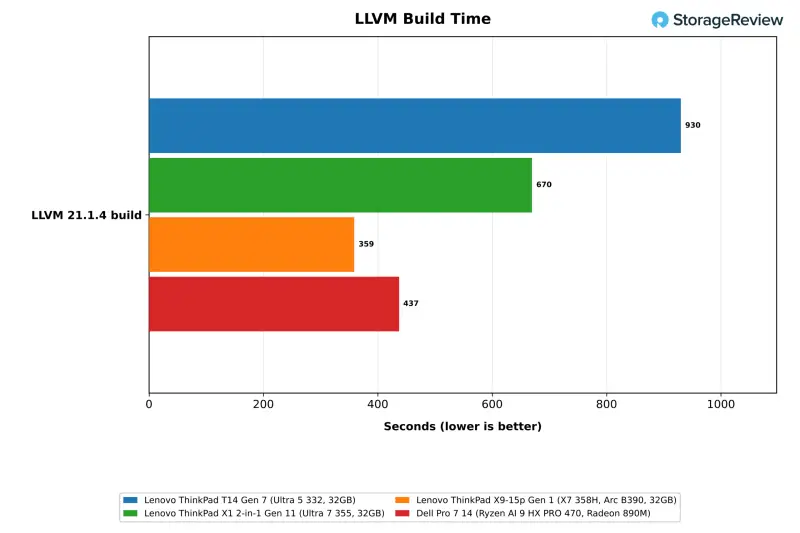
The content creation tests follow the Cinebench pattern. The X1 2-in-1 leads the T14 by 41 percent in 7-Zip, 47 percent in Blender Monster and 28 percent in HandBrake x265. The T14 scored 40.7 GIPS in 7-Zip with all threads, against 57.4 for the X1 2-in-1. Its Blender Monster result was 46.3 samples per minute. The LLVM build took 930 seconds on the T14, against 670 on the X1 2-in-1. The X9-15p is 2.6 times faster in 7-Zip at 104.5 GIPS and 2.7 times faster in Blender Monster, and it finishes the LLVM build in 359 seconds. The Dell matches the X9-15p in 7-Zip and finishes the build in 437 seconds.
Lightly Threaded Work: Stockfish, primesieve, Python and the Browser
The gap narrows in lightly threaded work. The T14 scored 35.5 in Speedometer 3.1, which is 8 percent behind the X1 2-in-1 and 4 percent behind the Dell. It ran PyPerformance go in 81.2ms, against 76.9ms on the X1 2-in-1. One-thread Stockfish reached 1.54 Mnps, against 1.65 on the X1 2-in-1. Single-thread primesieve to 10^11 took 11.28 seconds on the T14. All-thread Stockfish at 5.43 Mnps is where core count shows again, with the X1 2-in-1 42 percent ahead and the X9-15p and the Dell both above 13.8 Mnps.
Scientific Compute and Memory Bandwidth
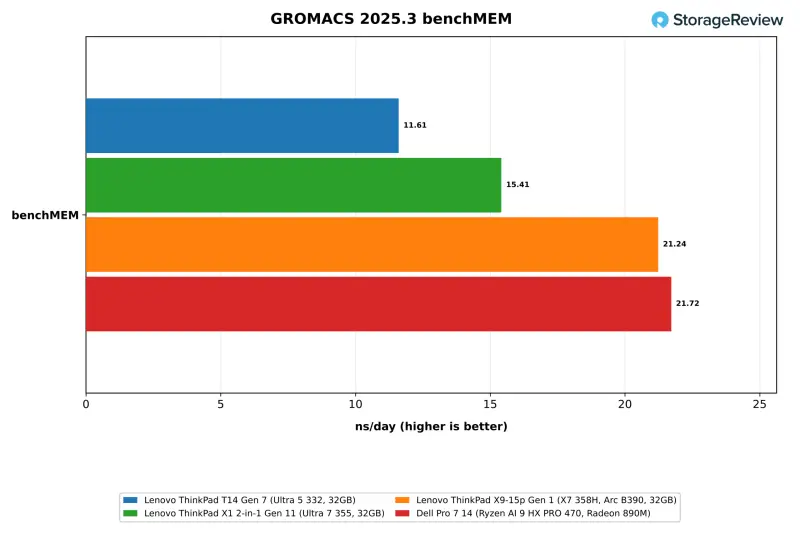
GROMACS benchMEM ran at 11.61 ns/day on the T14. The X1 2-in-1 is 33 percent ahead, and the X9-15p and the Dell are about 1.8 times faster. OpenBLAS DGEMM reached 201.6 GFLOPS on the T14, against 272.0 on the X1 2-in-1 and 469.2 on the X9-15p. STREAM Triad measured 53.2GB/s on the T14's LPCAMM2 memory at 6800MT/s. That's 18 percent above the Dell and below the 63.6GB/s of the X1 2-in-1's LPDDR5X-7467 and the 91.3GB/s of the X9-15p's LPDDR5X-9600.
Graphics and GPU Encoding
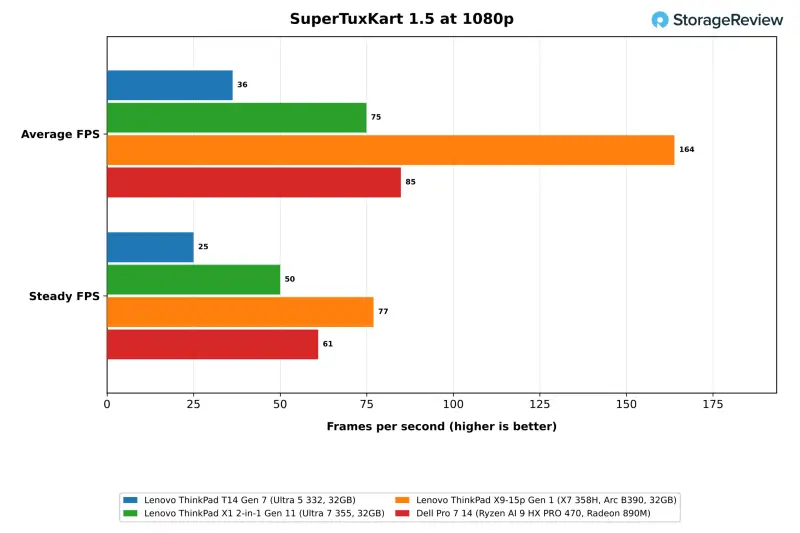
SuperTuxKart at 1080p with the highest preset is the suite's one game test. The T14 averaged 36.3 fps, with a steady figure of 25 fps. The X1 2-in-1 averaged 74.9 fps on its larger Intel Graphics. The Radeon 890M in the Dell reached 84.9 fps, and the Arc B390 in the X9-15p hit 163.9 fps, which is 4.5 times the T14.
GPU encoding tells a different story. FFmpeg with HEVC Quick Sync ran at 126 fps on the suite's Big Buck Bunny clip. That's within 2 percent of the X1 2-in-1 and the X9-15p at 128 fps. The media engine isn't cut down the way the 3D and compute side of the graphics is. For a business notebook, that covers conferencing, screen recording and video playback, which is where most users spend their graphics time.
Thermals and Clocks Under Load
The 332 reached between 93C and 94C in every sustained CPU test and held there. Mean clocks stayed between 3,559MHz and 3,621MHz under those loads, with no decline across the 30-minute loop. GROMACS was the hottest workload, with a 92.6C mean. GPU-led work ran cooler on the processor side. MLPerf Client averaged 58.1C at a mean clock of 2,367MHz, and LLM serving averaged 54.9C. The storage run averaged 58.4C. Fan noise under those loads was unremarkable in our lab.
Storage Performance
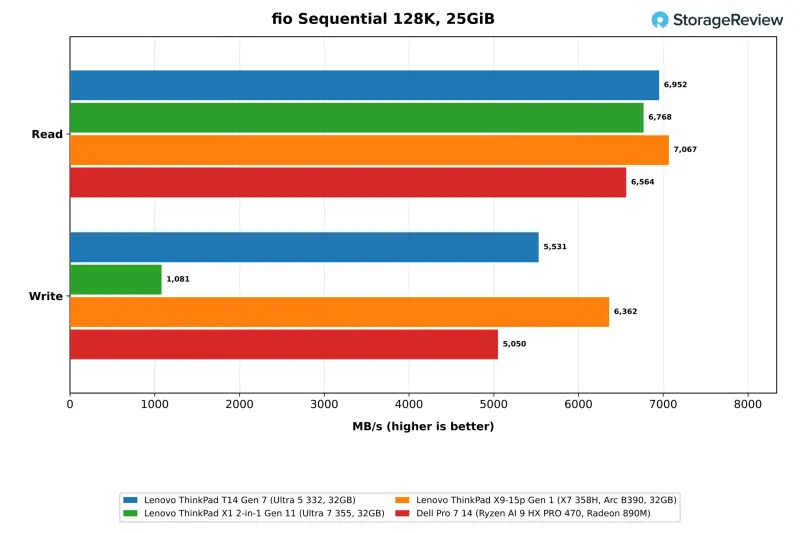
The 512GB drive in our unit is a Samsung PCIe Gen4 SSD, installed in a slot that supports Gen5. Sequential read measured 6,952MB/s on the 25GiB fio footprint, which is in line with the other Gen4 drives in this group. Sequential write held at 5,531MB/s, a result the suite flagged for variance across passes. The X1 2-in-1 carries the same Samsung model and dropped to 1,081MB/s on the same write test. We treat that result as specific to the X1 2-in-1's drive.
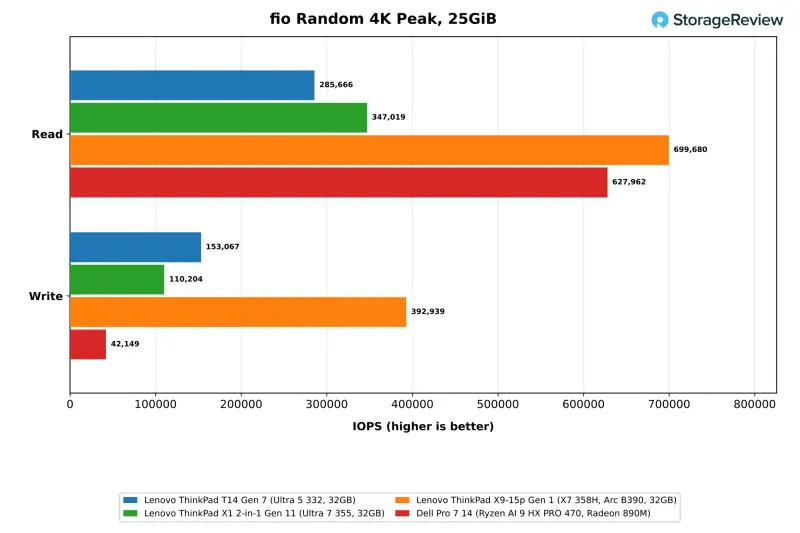
Peak 4K random read reached 285,666 IOPS. That's below the 347,019 of the X1 2-in-1's drive and well under the 699,680 that the 1TB drive in the X9-15p delivered. Random write peaked at 153,067 IOPS, flagged for variance. Since the slot is reachable once the bottom cover is off, a storage upgrade after purchase is a simple swap.
What to Order and What to Watch
The ThinkPad T14 Gen 7 keeps the features fleet buyers ask for: replaceable LPCAMM2 memory, an M.2 slot that takes Gen5 drives, Gigabit Ethernet, two USB-A ports, HDMI 2.1, a 75Wh battery option and vPro management, all in a chassis that starts at 1.37kg. The Core Ultra 5 332 held its full Cinebench score through a 30-minute loop. It stayed within 4 to 8 percent of the X1 2-in-1 in single-core and browser work.
The limits come from the six-core chip and its smaller graphics. The X1 2-in-1's Core Ultra 7 355 ran 41 to 47 percent ahead in 7-Zip and Blender, and its graphics roughly doubled the T14's results on Llama 3.1 8B in MLPerf Client and in SuperTuxKart. The T14 failed all three coding agent runs and needed 35 seconds to return a first token when serving a 3B model. Local AI is not a reason to buy this configuration. The build doesn't feel premium either. Still, the screwless battery, three-screw memory module and serviceable ports put the T14 high on our list for fleet machines.
Lenovo.com's Core Ultra 7 365 vPro model costs less than our 21WN00C9US at CDW and B&H, and it offers faster memory, double the storage and the same panel. The 365 shares the 355's eight-core layout and 40-TOPS graphics, so the X1 2-in-1's results are a reasonable guide to what that model should deliver. We haven't tested it, so treat that as an informed expectation rather than a measured result. For IT buyers standardizing on a serviceable 14-inch ThinkPad with Ethernet, the T14 Gen 7 fits the brief. If you're ordering, the Core Ultra 7 365 configuration is the one to put on the list. Check it against your own workloads before you commit a fleet to the 332.


