SharePoint Online Auto-Labeling Now Reaches Existing Files in Document Libraries
A new auto-label policy applies default sensitivity labels to existing SharePoint files, capped at one policy and ten sites per tenant. Here's what admins need to plan.
Default sensitivity labels on SharePoint Online document libraries have always had a blind spot. They only act when someone touches a file. Message center notification MC1477181, dated 22 September 2026, introduces a way to close that gap. A special auto-label policy can now push a library's default label onto unlabeled files that already sit in the library, and it's generally available. For admins who have been relying on default labels to protect legacy content, this is a meaningful change, but the limits are tight enough that it needs planning before you touch the configuration.
Why Existing Files Have Been Exposed
Microsoft added default sensitivity labels for SharePoint Online document libraries in 2022. Once a library has a default label, SharePoint Online assigns it to any file added to the library from that point on, and to any file modified afterwards. The catch is that older files don't get the label until someone edits them. SharePoint also applies the default when an unlabeled file is edited or when the file carries a lower-priority label.
That design removes a lot of user burden. Nobody has to remember to pick a label when saving a new contract or spreadsheet. The feature is a premium one, though. It needs licensing that includes the right Information Protection capabilities, with Microsoft 365 E5 or an equivalent compliance and protection add-on named in the source material.
The weak point is the unmodified file. A sensitive document uploaded before the library was configured, and never opened again, keeps no label and no protection. Teams in this position often don't discover the gap until someone runs a report or an audit asks questions.
Why That Gap Matters More Now
AI tools make the stale-file problem harder to ignore. If you want to stop Microsoft 365 Copilot Chat from using certain files when it answers prompts, labels and the policies built on them are part of the answer. Encryption-based sensitivity labels also keep third-party tools from processing protected content. The Microsoft 365 Connector for Claude is one example of a tool that falls under that restriction.
Put simply, a file that never gets edited might never get labeled, and an unlabeled file may not be shielded from these tools. That's the reason to extend protection to existing content, not just new and changed files.
What the New Auto-Label Policy Does
The new policy type targets unlabeled existing files directly. Four details define how it works and where it can be used:
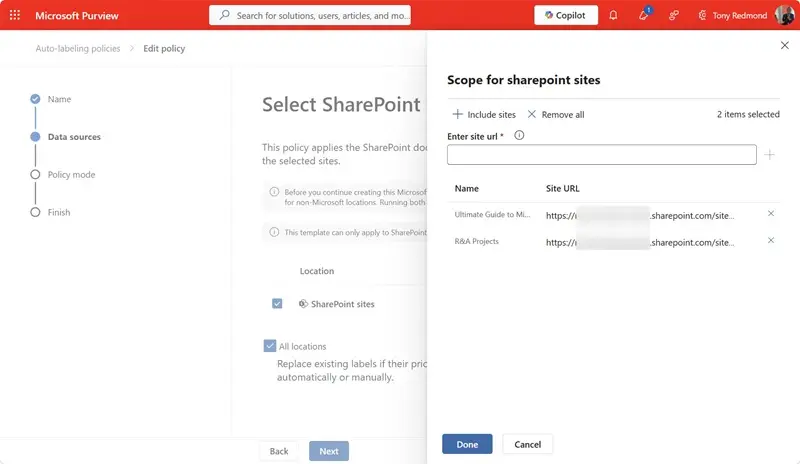
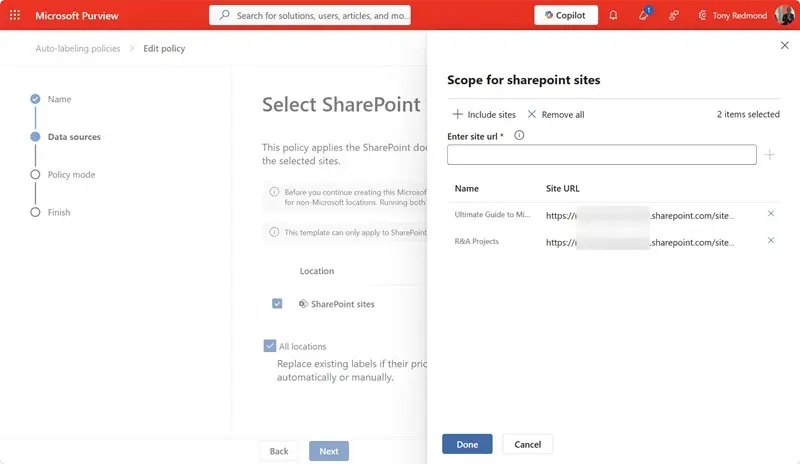
Only one such policy can exist in a tenant. It can process a maximum of ten SharePoint Online sites. The account used to configure it must hold either the Compliance administrator or the SharePoint administrator role. And every site added to the policy needs at least one document library that already has a default sensitivity label. If you add a site without one, Purview returns an error saying the default label can't be verified. Check your library settings before you build the site list, not after.
Figure 1 shows the site configuration screen.
How Background Processing Behaves
A Purview Information Protection background job scans each configured site and looks for document libraries with default labels. When it finds files missing that default, SharePoint Online applies the label automatically. The job handles only file formats that support sensitivity labels, which the source material describes as Office files and PDFs today.
You can also set the policy to replace labels that rank lower in priority than the library's default. That replacement can affect labels applied automatically or manually, so review your label priority order before you enable it. A lower-priority label that users chose deliberately could be overwritten.
Not every file will be reachable on the first pass. Open files, files protected by double-key encryption or user-defined permissions, and files that are locked or checked out can't be labeled while background processing runs. Repeated passes should pick up most of them as they become available. Expect coverage to build over time rather than appear all at once, and don't read an unlabeled file in the first report as a failure.
Microsoft documents the policy in its guidance on applying sensitivity labels automatically. Read the section on default labels for existing files before you configure anything.
The Ten-Site Limit Is the Real Constraint
Extending default labels to existing files is a good change. The main drawback is the cap. One policy and ten sites per tenant means you have to decide which libraries matter most. In practice, the strongest candidates are sites holding highly confidential material that isn't already shielded from AI-driven discovery by controls such as Restricted Content Discovery. Start there, and be honest about which sites really qualify.
Microsoft's suggested workaround is rotation. You apply labels across one group of ten sites, then update the policy to cover another ten, and repeat until every site with a default-labeled library has been processed. That works on paper. Given how background jobs typically run, though, rotation could take a long time and be tedious to manage. Teams with large SharePoint estates should map out the rotation schedule early and track which sites have finished.
What to Do Before You Build the Policy
Start with an inventory. List every document library that carries a default sensitivity label and confirm each one is set correctly, since sites without a default label will be rejected. Then rank your sites by sensitivity and by exposure to AI tools. Assign the first ten to the initial policy and document the rotation plan for the rest.
Check the Compliance administrator or SharePoint administrator role on the account that will do the configuring, and confirm the licensing covers the feature. Review label priorities before enabling replacement, so you don't overwrite labels users applied on purpose.
The one-policy, ten-site limit will likely shape how quickly existing content gets covered, and that's the part to watch. If Microsoft raises those limits in future, rotation becomes much less of a chore. Until then, the most useful move is a clear site ranking and a dated rotation plan, so your sensitive legacy files stop waiting for someone to open them.


